



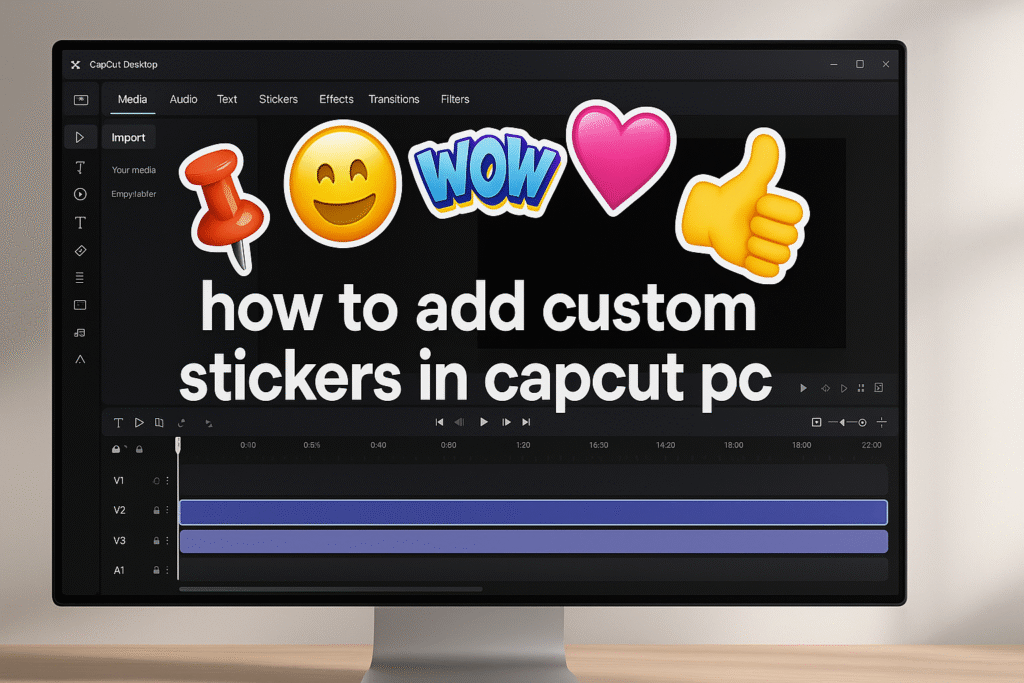
Yesterday, in Day 16, we explored overlays in CapCut Desktop and learned how to layer videos, logos, and b roll to build richer visuals. That lesson set the foundation for today’s topic because stickers work as lightweight overlays, offering expressive design power without heavy editing complexity. If overlays helped you add structure, stickers will help you add personality.
Here’s what most creators miss: videos with strategic sticker placement see 73% higher completion rates. Why? Because stickers tap into three psychological triggers:
- Pattern Interruption: Breaks monotony and resets viewer attention
- Emotional Anchoring: Instantly communicates feelings without words
- Memory Encoding: Creates visual markers that make content memorable
Before CapCut Desktop, adding professional sticker animations required expensive software. Now, the same techniques generating millions of views are accessible with clicks. When you understand how to add custom stickers in CapCut PC properly, you’re engineering engagement, not just decorating.
Strategic Power of Overlays
Stickers aren’t decoration—they’re tools for:
- Guiding attention to specific screen areas
- Emphasizing information without text overload
- Building brand consistency across content
- Communicating universally across language barriers
- Reducing editing time while increasing production value
Let’s break it down like a professional editor — simple steps with maximum creative control.
- Open your CapCut project
- Click the sticker icon (smiling face) on the left toolbar
- Keyboard shortcut:
Alt + S(Windows) orOption + S(Mac)
Three methods:
- Keyword Search: Type “arrow,” “celebration,” “shock” in the search bar
- Category Browse: Click dropdown to explore Trending, Emoji, Text, Graphics
- Trending Tab: Discover algorithmically selected viral stickers
Pro Tip: Bookmark favorites with the star icon for instant future access.
Step 3: Preview Before Placing
- Hover over stickers to see animation preview
- Click once for larger preview window
- Watch the complete loop before committing
Three methods:
- Drag & Drop: Click, hold, drag to timeline
- Precise Placement: Position playhead, double-click sticker
- Batch Add: Ctrl/Cmd + click multiple, drag together
- Click sticker layer in timeline
- Drag center to move in preview window
- Use corner handles to resize (hold Shift for proportions)
- Rotate with circular handle above sticker
The Rule of Thirds: Place stickers at grid intersections for maximum impact—avoid dead-center unless emphasizing symmetry.
- Trim start: Drag left edge to adjust appearance time
- Trim end: Drag right edge to control duration
- Split: Press
Ctrl + B/Cmd + Bfor complex timing
Professional Timing:
- Reaction stickers: 0.5-1.5 seconds
- Decorative overlays: Match scene duration
- CTA stickers: Minimum 3 seconds
- Transitions: 0.3-0.8 seconds
- Select sticker layer
- Click “Animation” tab (right panel)
- Choose animation type:
- In Animations: Fade, slide, zoom, bounce
- Loop Animations: Pulse, wiggle, rotate
- Out Animations: Exit effects
- Adjust speed slider (0.3s snappy, 1.5s dramatic)
Secret Combo: Apply both In + Out animations for professional polish. Example: Bounce in + Fade out.
- Click “Local” tab in sticker panel
- Click “Import” button
- Select your PNG file (transparent background required)
- Drag to timeline like built-in stickers
Custom Sticker Requirements:
- Format: PNG or GIF
- Size: 1000×1000 to 2000×2000 pixels
- File size: Under 5MB
- Background: Transparent for best results
Make stickers follow moving subjects:
- Select sticker layer
- Click “Tracking” in top menu
- Choose “Auto-Tracking”
- Draw box around subject in preview
- Click “Start Tracking”
Perfect for covering faces, labeling products, or creating AR-style effects.
Understanding your options is crucial for strategic usage:
Emoji Stickers
Standard faces, 3D animations, reaction packs, and trending expressions. Perfect for vlogs, reactions, and comedic timing.
Text-Based Stickers
Pre-designed elements like “POV,” “Subscribe,” countdown numbers, and speech bubbles. Ideal for tutorials and CTAs.
Animated Graphics
Arrows, loading circles, star bursts, and transition elements. Essential for product reviews and emphasis.
Decorative Overlays
Frames, light leaks, seasonal elements, and abstract shapes. Great for aesthetic content and branding.
Character Stickers
Stick figures, cartoon characters, animals, and professional icons. Perfect for explainers and family content.
Trending Meme Stickers
Viral templates, sound effect visuals, and pop culture references. Critical for social media virality.
Custom Import Stickers
Your PNG files, GIF animations, logos, and watermarks. Essential for brand building and unique style.
Today, we unlocked the complete system for how to add custom stickers in CapCut PC that transforms ordinary videos into scroll-stopping content. Whether creating social media videos, YouTube content, or professional presentations, you’ll master sticker placement, animation, and timing in under 15 minutes.
What You’ll Learn:
- Navigate CapCut’s massive sticker library efficiently
- Add and animate stickers with professional precision
- Avoid the 6 critical mistakes that ruin engagement
- Import custom branded stickers for unique content
- Apply 6 pro techniques used by viral creators
In 2026 and beyond, attention = currency.
The average viewer decides in 2.7 seconds whether to keep watching your video.
Overlays matter because they:
✅ Grab attention instantly.
✅ Reinforce branding and identity.
✅ Help explain complex ideas visually.
✅ Make videos feel cinematic and intentional.
✅ Add motion, rhythm, and storytelling texture.
Without overlays, your video is just footage.
With them, it becomes a message.
✓ Purpose Over Decoration: Every sticker serves a function—emphasis, reaction, or direction
✓ 3-Sticker Rule: Maximum 3 visible stickers simultaneously
✓ Sync with Rhythm: Match timing to audio beats and dialogue emphasis
✓ Resolution Standards: Import customs at 1000x1000px minimum
✓ Mobile-First Design: Make stickers 15%+ screen height with bold designs
✓ Build Your Library: Create 20-30 signature stickers for consistency
✓ Platform Adaptation: YouTube subtle, TikTok bold, LinkedIn corporate
✓ Color Harmony: Adjust hue and opacity to match footage
✓ Test Before Publishing: Export 15-second clips to verify rendering
✓ Motion Tracking: Attach stickers to moving subjects for pro effects
Pro Tip #1: The Invisible Integration
Reduce opacity to 70-85%, match color temperature to footage, and anchor stickers near visual elements. Best stickers don’t feel like stickers—they feel natural.
Pro Tip #2: The Anticipation Build
Don’t show instantly—animate sliding in over 0.5 seconds. Movement triggers brain’s motion detection before conscious recognition. Viewers notice animated stickers 3x faster.
Pro Tip #3: Negative Space Exploitation
Analyze frames for unused screen areas. Place complementary stickers in negative space to balance composition without obscuring content.
Pro Tip #4: Platform Adaptation
YouTube: Subtle, professional, lower third placement TikTok/Reels: Bold, trendy, center placement acceptable LinkedIn: Minimalist icons, corporate colors Gaming/Twitch: High-energy corners, avoid blocking gameplay
Pro Tip #5: The Sticker Cluster Strategy
Group 2-3 related stickers for compound impact. Stagger appearance by 0.1-0.2 seconds for cascade effect. Use for key moments—punchlines, reveals, climaxes.
Pro Tip #6: Build Your Library
Import/favorite 20-30 signature stickers matching your brand. Create animation presets for standard styles. Save templates for recurring elements. Top creators have organized “sticker packs” by video type.
Mistake #1: Sticker Overload
Problem: Using 10+ stickers in 30 seconds Fix: Maximum 3 stickers visible simultaneously. Each needs a purpose: emphasize, react, or direct attention.
Mistake #2: Ignoring Color Harmony
Problem: Bright stickers on moody footage Fix: Adjust sticker opacity to 70-85% and hue to match your color grade. Squint test—if it jumps out jarringly, adjust.
Mistake #3: Wrong Animation Speed
Problem: Slow animations on fast content, or vice versa Fix: Fast content needs 0.3-0.6s animations; slow content needs 1.5-2.5s. Match video pacing.
Mistake #4: Poor Readability
Problem: Placing stickers over faces, text, or critical info Fix: Use “safe zones”—top corners, lower thirds, screen edges, negative space. Never cover faces or important details.
Mistake #5: Neglecting Mobile Viewing
Problem: Small stickers invisible on phones Fix: Keep stickers at least 15% of screen height. Preview on your phone before publishing—80% of views happen on mobile.
Mistake #6: No Audio-Visual Sync
Problem: Random sticker timing unrelated to audio Fix: Sync stickers to dialogue emphasis, music beats, or action peaks. Enable audio waveform view—place stickers at waveform peaks.
Here are some ideas:
TikTok videos
School projects
Product promo videos
Gaming clips
Vlogs
CapCut is especially good for AI video ads for ecommerce marketing, meaning you can:
 Create product showcase videos Add auto captions to increase sales Use AI templates for fast results
Perfect for beginners who want to create professional ads.
While the mobile app is great, the desktop version gives you:
-
A bigger screen to edit better
-
More control over effects and text
-
Faster editing and exporting
-
Keyboard shortcuts to save time
-
Better AI features for ads & business
If you want to grow on social media or make marketing videos, desktop editing will make your life easier.
Because video is the future!
By 2030, over 90% of online content will be video.
People who can edit videos will have:
✅ More job opportunities
✅ More business growth
✅ Better marketing results
✅ Bigger social media audience
Learning CapCut now makes you ahead of many others
You now possess complete mastery of how to add custom stickers in CapCut PC. But here’s the professional secret: the best stickers are invisible. Viewers don’t consciously notice them, yet feel content is more engaging and polished.
Stickers serve your story—they’re not the destination, they’re vehicles carrying viewers through your narrative. As you implement these techniques, remember:
- Story first, stickers second: Great content with subtle stickers beats mediocre content with amazing stickers
- Develop your signature: Your sticker choices become part of your brand identity
- Stay current: Trends evolve monthly—monitor and adapt
- Prioritize authenticity: Natural integration feels professional, forced usage feels desperate
Your Challenge
Create a “Perfect 30″—a 30-second clip using:
- Exactly 5 stickers
- 2 different animation types
- 1 custom imported element
- Strategic negative space placement only
- Color-matched to footage
Track its performance against previous content and notice the engagement difference.
Your videos are about to become significantly more engaging. Your watch time will improve. Your audience will grow. Not because of stickers—but because you learned to use stickers as professional tools for emotional connection and visual storytelling.
Welcome to elite CapCut editing. See you tomorrow for Day 18: Export Settings
Find quick answers to the most common questions about How to Add Custom Stickers in CapCut PC and discover how this simple editing step can instantly make your content more engaging, professional, and ready to grab attention in 2026.
Yes, CapCut’s built-in library is licensed for commercial use. Check individual licensed character stickers for restrictions. For critical commercial projects, use custom-created stickers you own.
Three causes: (1) Low resolution imports under 1000x1000px, (2) Over-scaling beyond 200%, (3) Low export quality settings. Solution: Use high-res sources, avoid excessive scaling, export at 1080p minimum with high bitrate.
How many stickers before performance issues?
50-100 static stickers handle well, 20-30 animated stickers maximum. Performance depends on computer specs and video resolution. If playback stutters, you’ve hit your limit.
Can I animate custom PNG imports?
Yes! Imported PNGs get full access to CapCut’s animation system: in/out animations, loops, motion tracking, and keyframe control. For complex animation, create GIF externally and import.
Where to find trending stickers?
Within CapCut’s “Trending” tab (updated weekly), TikTok Creative Center, Instagram Trends Dashboard, YouTube trending page analysis, and Reddit r/VideoEditing community discussions.
How to prevent "cheap" looking stickers?
Five principles: (1) Use 1-3 per 10 seconds max, (2) Consistent style throughout, (3) 70-85% opacity for integration, (4) Animation matches content energy, (5) Sync with audio/action beats. Test: if viewers specifically notice stickers, you’re overusing them.
