



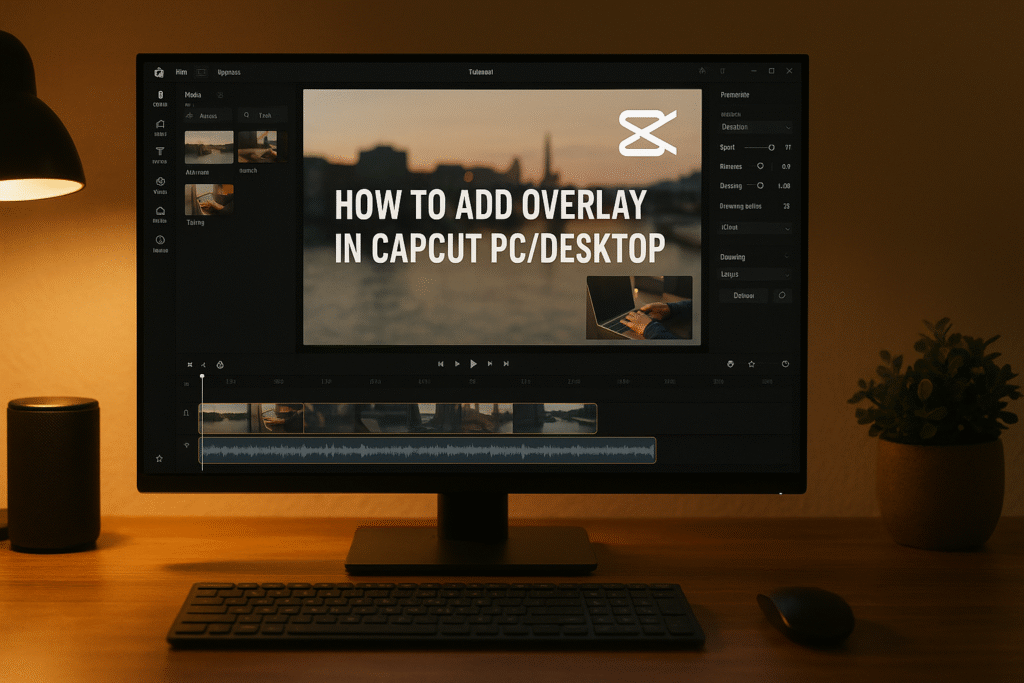
Yesterday, we dove deep into the world of green screen (chroma key) editing in CapCut PC.
You learned how to remove backgrounds, blend new environments, and teleport your subject anywhere using the Chroma Key tool.
That skill opened the door to cinematic freedom.
Now, we’re taking that freedom further — because once you master overlays, you’ll be able to combine multiple visuals, add branding elements, and create immersive layers that pull viewers in.
Think of overlays as layers — like stickers, textures, or effects you place on top of your main footage.
They can be:
-
Logos for branding
-
Text banners
-
Watermarks
-
B-roll videos
-
Graphics
-
Emojis or GIFs
-
Animated titles
In CapCut Desktop, overlays are your secret weapon for making videos feel designed, branded, and visually rich — all without leaving the app.
Let’s break it down like a professional editor — simple steps with maximum creative control.
-
-
Launch CapCut Desktop and click New Project.
-
Import your main video clip — the one you want to add overlays to.
-
Drag it into the timeline.
-
-
Drag and drop your second video, image, or logo onto the track above your main video.
-
That’s your overlay layer.
-
You can adjust its position, duration, and size just like any other clip.
Pro Tip:
Each layer on the timeline represents a different visual plane — the higher it sits, the more visible it is.
Step 3: Resize and Position the Overlay
-
Click on the overlay in the preview window.
-
Use the resize handles to scale it up or down.
-
Move it to the desired spot (e.g., top-right for a logo, bottom-left for watermark).
-
Select the overlay clip.
-
Open the “Basic” tab in the right-side panel.
-
Lower the opacity if you want a transparent look.
-
Try different blend modes (Overlay, Screen, Multiply) for creative results.
-
Trim the overlay so it appears exactly when you want it to.
-
Align it with specific moments — intros, transitions, or highlights.
-
-
Click Animation → In/Out/Combo.
-
Choose effects like fade-in, pop, or slide.
-
Animated overlays make your video look dynamic and polished.
-
-
Once you’re satisfied, click Export.
-
Choose your preferred format (MP4 for YouTube or social media).
Congratulations! you’ve just layered your first pro overlay in CapCut PC.
Overlays aren’t one-size-fits-all. Different types serve different creative goals:Let’s get creative. Here are five real-world ways to use Green Screen effectively:
Replace plain backgrounds with stylish motion visuals or brand colors.
Example: A coffee cup floating over a sunrise scene.
-
Perfect for branding your tutorials or ads.
-
Keeps your identity visible in every video.
Useful for watermarks, infographics, or decorative graphics.
-
Layer supporting footage — like hands typing or product shots.
-
Adds professional storytelling flow.
Import moving graphics like sparkles, arrows, or emojis for fun content.
Add pre-made overlays like light leaks, film grain, or cinematic dust.
Use overlays to mask or bridge two scenes creatively.
In this in-depth guide, we explored how to add overlay in CapCut PC/Desktop, including how to layer videos, logos, and B-roll like a professional editor.
You learned about different overlay types, creative uses, common mistakes, and essential pro tips for stunning results.
With this skill, your videos will transform from simple to cinematic — perfect for YouTube, brand ads, tutorials, and reels.
In 2026 and beyond, attention = currency.
The average viewer decides in 2.7 seconds whether to keep watching your video.
Overlays matter because they:
✅ Grab attention instantly.
✅ Reinforce branding and identity.
✅ Help explain complex ideas visually.
✅ Make videos feel cinematic and intentional.
✅ Add motion, rhythm, and storytelling texture.
Without overlays, your video is just footage.
With them, it becomes a message.
-
Overlays = professional visual layering.
-
You can add videos, images, logos, or animations easily in CapCut Desktop.
-
Control opacity, blend, and motion for perfect integration.
-
Keep visuals clean, balanced, and brand-aligned.
-
Avoid clutter and mismatched elements for best results.
-
-
Use high-resolution overlays to avoid pixelation.
-
Keep overlays short and purposeful — less is more.
-
Match colors with your brand palette or video theme.
-
Use animation sparingly — too much motion distracts.
-
Layer creatively — stack multiple overlays for depth.
-
Use blend modes to merge overlays naturally.
-
Group overlays when editing long projects for consistency.
-
Always preview in full screen before exporting.
-
Maintain padding around logos for a professional layout.
-
Sync overlays to beats or transitions for cinematic flow.
-
-
Cluttering the screen with too many layers.
-
Mismatched resolutions — blurry overlays ruin quality.
-
Ignoring safe zones — text/logos may get cropped on phones.
-
Overlapping overlays incorrectly (wrong timeline order).
-
Not adjusting opacity — harsh edges look unprofessional.
-
Using generic stock overlays that don’t match your tone.
-
Skipping blend mode adjustments.
-
Forgetting consistency in style and animation speed.
-
Adding overlays that distract from your subject.
-
Failing to test playback before final export.
Here are some ideas:
TikTok videos
School projects
Product promo videos
Gaming clips
Vlogs
CapCut is especially good for AI video ads for ecommerce marketing, meaning you can:
 Create product showcase videos Add auto captions to increase sales Use AI templates for fast results
Perfect for beginners who want to create professional ads.
While the mobile app is great, the desktop version gives you:
-
A bigger screen to edit better
-
More control over effects and text
-
Faster editing and exporting
-
Keyboard shortcuts to save time
-
Better AI features for ads & business
If you want to grow on social media or make marketing videos, desktop editing will make your life easier.
Because video is the future!
By 2030, over 90% of online content will be video.
People who can edit videos will have:
✅ More job opportunities
✅ More business growth
✅ Better marketing results
✅ Bigger social media audience
Learning CapCut now makes you ahead of many others
Adding overlays in CapCut isn’t just an editing feature — it’s an art form.
It lets you blend layers of story, emotion, and identity into a single frame.
Whether you’re a marketer, creator, or business owner, mastering overlays turns your videos into branded experiences that stick.
Remember — every overlay should serve a purpose: to clarify, beautify, or reinforce your message.
Do that, and your content will never look amateur again.
- How to download and Install CapCut Desktop in 2026
- Mastering CapCut Basic Editing Tools 2026
- How to import Videos on CapCut PC?
- How to trim videos in CapCut PC?
- Filters and Effects in CapCut PC
- How to cut/clip video in CapCut PC?
- Crop Video in CapCut PC
- How to Freeze Frame in CapCut PC?
- How to Reverse Video in CapCut PC 2026?
- How to add Custom Stickers in CapCut Pc 2026?
- Best Export Settings in CapCut PC?
- How to add overlay in CapCut PC?
- How to remove Green Screen in CapCut PC?
- How to add blur effect in CapCut PC?
- Zoom in Key Frame Step by Step using CapCut Desktop
- How to adjust speed in CapCut PC?
- How to add Music in CapCut PC?
- How to add your own voice in CapCut PC?
- How to add text in CapCut PC?
- How to use CapCut Templates on PC?
- Add Auto Captions on CapCut PC
- Add Transitions in CapCut PC
Find quick answers to the most common questions about How to Add Overlay in CapCut PC/Desktop and discover how this simple editing step can instantly make your content more engaging, professional, and ready to grab attention in 2026.
Yes! You can stack unlimited overlays on different tracks.
Import your logo (PNG preferred) and drag it above your video layer.
Can I animate overlays?
Yes, go to Animation and choose In, Out, or Combo effects.
What file types can I use for overlays?
Images (JPG, PNG), videos (MP4, MOV), and GIFs.
Can I add overlays in specific parts only?
Absolutely. Trim or split overlays to appear only where you want.
Why is my overlay not visible?
It might be on a lower layer; move it above your main video.
How to add transparency to my overlay?
Adjust Opacity in the Basic settings panel.
Can overlays be exported with motion effects?
Yes, all animation and effects export exactly as previewed.
Is overlay editing free in CapCut PC?
Yes! All overlay tools are included in the free version.
Does overlaying reduce video quality?
No, if you export in 1080p or higher and avoid scaling too much.
