



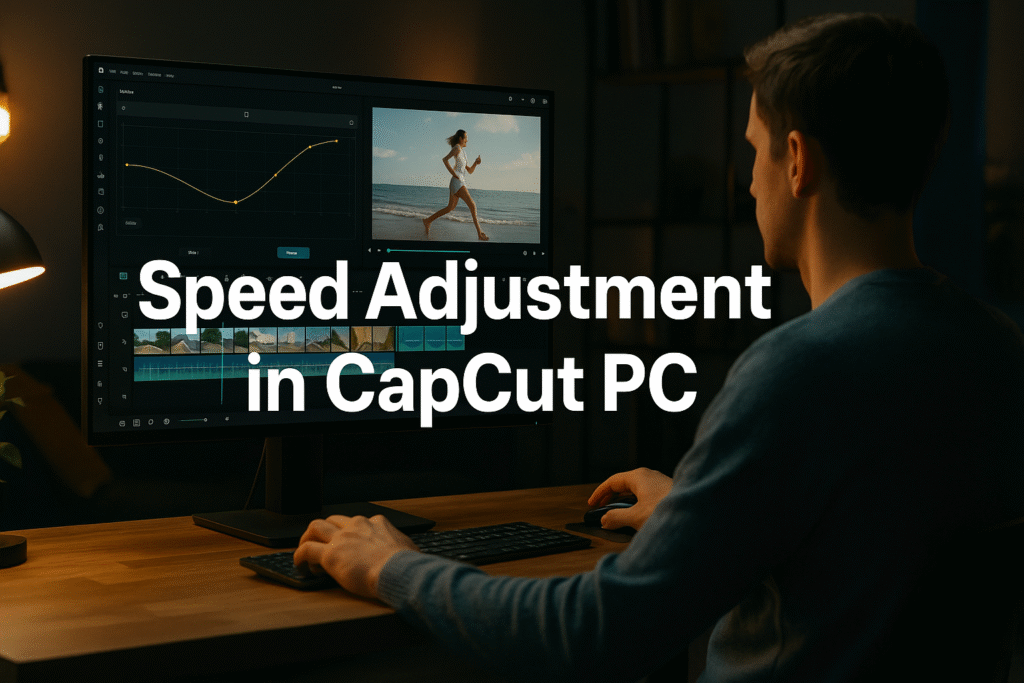
Speed Adjustment CapCut PC: 7 Easy Ways to Control Video Speed Like a Pro

Table of Contents

Speed Adjustment CapCut PC: 7 Easy Ways to Control Video Speed Like a Pro

Speed adjustment CapCut PC makes your videos cinematic and dynamic in minutes! Learn 7 simple steps to control video speed, create smooth slow-mo, and add professional effects that make your content stand out.
speed adjustment capcut pc

In our last post, we explored how to use filters and effects in CapCut PC to give your videos a complete visual makeover. You learned how to apply cinematic tones, tweak brightness and contrast, and use creative overlays to instantly boost your video’s style and emotion. Those tools helped your edits look amazing — and now, with speed adjustment, you’ll make them feel amazing too. 

Now that you’ve mastered filters and effects, it’s time to take things up a notch with speed adjustments that completely transform the mood and style of your videos.

Have you ever watched a video that just feels right — where every movement, pause, and transition flows so smoothly that it pulls you in completely?
Here’s the secret: it’s not always the camera, the lighting, or even the story — it’s speed control.

Yes, the way you manipulate video speed can make the difference between a boring clip and a cinematic masterpiece.
Whether it’s a slow-motion emotional shot or a fast-paced sequence full of energy, mastering speed adjustment in CapCut PC can make your edits pop, flow, and feel alive.

In this guide, we’ll go deep into how you can use speed adjustment CapCut PC to completely transform your videos even if you’re a beginner.

Before we dive into steps, you need to understand the two main types of speed control tools available in CapCut Desktop:

Type Best For How It Works Use Case Example
Normal Speed Simple slow or fast motion Adjusts the clip’s entire duration evenly Making clips 2x slower for dramatic effects or 2x faster for energy
Curve Speed Advanced, dynamic control Changes speed at different points on a timeline curve Smooth speed ramps, slow-mo reveals, or dramatic accelerations

Normal Speed is great for beginners who want quick results.
Curve Speed, however, gives editors creative control — it’s like sculpting time itself.

Let’s break down the full process so you can start experimenting right away.

Open CapCut PC, create a new project, and drag your video clip into the timeline.
Make sure you’ve chosen the section you want to modify — shorter clips are easier to test with first.

Click on the clip in your timeline to activate editing options.
You’ll see multiple tools appear on the top bar — including Speed.

Step 3: Find the Speed Tool

Click the Speed icon on the toolbar. CapCut will now display two modes:

  • Normal

  • Curve

If you’re just getting started, select Normal Speed.

You’ll see a slider that lets you slow down (move left) or speed up (move right) the clip.

  • Move it to 0.5x for smooth slow motion — perfect for emotional or cinematic moments.

  • Move it to 2x or higher for quick montages, action sequences, or fun meme-style videos.

💡 Pro Tip: Combine Normal Speed with background music. Slow motion with a soft beat or fast motion with upbeat tempo can dramatically change viewer engagement.

Now comes the creative power.

Click on Curve Speed — you’ll see a graph with curve points. These control how speed changes over time.
You can use presets like:

  • Montage

  • Bullet

  • Hero Moment

  • Jump Cut
    …or create a Custom Curve to build your own timing.

For instance:

  • Start fast → Slow down mid-clip → Speed up at the end.
    This creates a speed ramp, often seen in professional music videos and sports edits.

🧩 Think of Curve Speed like dynamic motion storytelling. Each rise and fall in the curve shifts audience emotion.

Hit play and observe how your video flows.
Does it feel natural? Too slow in places? Too fast near the end?
You can easily drag curve points to smooth transitions and achieve a cinematic rhythm.

Once satisfied, click Export and save your project.
Try comparing it to the original — you’ll instantly see how much more engaging your version feels.

  • Controlling video speed isn’t just about making things faster or slower — it’s about controlling emotion, energy, and rhythm.
    Here’s why mastering it is crucial for every editor:

    • 🎥 It Creates Emotion:
      Slow motion builds suspense, tenderness, and impact — think of movie scenes where time seems to freeze right before something big happens.

    • ⏱️ It Shapes Storytelling:
      By controlling the speed of clips, you control how the audience experiences your story. Fast cuts create urgency; slow moments create reflection.

    • 💡 It Adds Professional Flow:
      Perfect speed transitions make your edits feel intentional — not like raw clips stitched together.

    • 🎬 It Matches Trends:
      Viral Reels and TikToks often rely on timing — music drops, facial reactions, product reveals. Getting the pacing right can make your videos instantly viral-ready.

    • 🎧 It Syncs with Music:
      Music and motion are partners. Speed control helps your visuals hit the beat perfectly, giving your edits rhythm and cohesion.

    Think of speed as the heartbeat of your video. When it’s steady, your audience relaxes; when it shifts, they react.
    CapCut PC gives you the power to direct that rhythm — frame by frame.

    • CapCut’s Speed Tool includes Normal and Curve Speed for different creative control levels.

    • Normal Speed is great for quick slow or fast motion adjustments.

    • Curve Speed allows precise, customizable ramps that feel cinematic.

    • Proper pacing adds rhythm, emotion, and flow — essential for storytelling.

    • Combine speed changes with transitions, filters, and music for professional results.

    When used right, speed control can elevate even a simple video into something memorable and emotionally engaging.

  • Pair with Transitions: Add smooth transitions like “Cross Fade” or “Zoom” to blend your slow and fast clips naturally.

  • Use Audio Sync: Adjust clip speed to hit specific beats or lyrics in your soundtrack — it feels seamless and professional.

  • Combine Effects: Apply cinematic filters to emphasize emotional speed changes (warm tones for slow-mo, cooler tones for action).

  • Keep It Natural: Avoid overusing extreme speed effects — it can distract rather than impress.

  • Watch Frame Rate: Shooting in higher FPS (60 or 120) gives smoother slow-motion results.

In this blog, we explored how to master speed adjustment in CapCut PC; one of the most powerful tools to control pacing, mood, and emotion in your videos. You learned how to use both Normal Speed for simple slow or fast motion and Curve Speed for advanced, dynamic timing effects. By adjusting speed thoughtfully, you can turn ordinary clips into cinematic stories that flow with rhythm and impact. Whether you’re creating product videos, vlogs, or reels, mastering video speed helps your content stand out, sync perfectly with music, and keep viewers fully engaged from start to finish.

Here are some ideas:

CapCut is especially good for AI video ads for ecommerce marketing, meaning you can:

✅ Create product showcase videos
✅ Add auto captions to increase sales
✅ Use AI templates for fast results

Perfect for beginners who want to create professional ads.

While the mobile app is great, the desktop version gives you:

  • A bigger screen to edit better

  • More control over effects and text

  • Faster editing and exporting

  • Keyboard shortcuts to save time

  • Better AI features for ads & business


If you want to grow on social media or make marketing videos, desktop editing will make your life easier.

Because video is the future!

By 2030, over 90% of online content will be video.
People who can edit videos will have:

✅ More job opportunities
✅ More business growth
✅ Better marketing results
✅ Bigger social media audience

Learning CapCut now makes you ahead of many others

Editing isn’t just about cutting clips — it’s about designing emotion through timing.
The Speed Adjustment tools in CapCut PC give you one of the most powerful storytelling levers ever made.

Whether you’re crafting high-energy social videos, elegant brand promos, or cinematic edits, mastering time manipulation will set your content apart.
Every pause, every acceleration — it all makes your viewer feel something.


So don’t just edit your videos. Conduct them like a symphony.
Experiment with speed adjustment in CapCut PC today, and make your audience experience every second, not just watch it.

And don’t go anywhere. Day 13 is all about zoom effect to make your videos truly engage and look cinematic.

Find quick answers to the most common questions about speed adjustments CapCut PC and discover how this simple editing step can instantly make your content more engaging, professional, and ready to grab attention in 2026.

Yes. Select multiple clips by holding Shift, then apply the same speed setting for consistent pacing.

Normal applies one speed across the clip. Curve lets you change speed dynamically — slower in parts, faster in others.

Yes. If the clip has original sound, it may distort. You can mute the clip or detach audio to replace it with music.

How do I make smooth slow-motion without lag?

Use high frame rate footage (60fps or more) and apply optical flow or smoothing options in CapCut for cleaner results.

Can I use speed adjustment for B-roll or transitions?

Anywhere between 0.25x–0.75x. Avoid going too slow unless your footage supports high FPS.

What’s a good speed range for cinematic slow-mo?

Absolutely. It’s great for zooms, reveals, or smooth transitions between clips.

AI VIDEO ADS SERVICES

Ecommerce business owners often struggle with wasted ad spend, endless testing, and creative fatigue trying to figure out which ads actually convert. That’s where AI video ads services change the game. With the power of artificial intelligence, you can now generate scroll-stopping videos that analyze audience behavior, optimize performance, and deliver results faster — without the trial-and-error of traditional ad creation.

As we move into 2026, AI is not just an advantage — it’s a necessity. Brands that fail to integrate AI marketing into their strategy risk falling behind competitors who leverage automation, personalization, and smart ad optimization.

“Great marketing isn’t about selling products. it’s about creating stories that people want to be part of.”

Seth Godin
AI VIDEO ADS

You will get the best AI VIDEO AD

 With AI video ads services, you gain a powerful edge; producing high-quality videos that cost less, perform better, and scale faster. 
 

At Samin AI Marketing Hub, we specialize in crafting AI ads that not only look stunning but are data-driven and conversion-focused. Our expertise lies in merging creativity with machine learning to create ad campaigns that speak directly to your target audience. Whether it’s AI UGC ads, storytelling videos, CGI animations, or spokesperson ads, our AI-driven approach ensures every video is designed to perform — not just to impress.

If you’re ready to elevate your ecommerce growth and dominate your niche, now is the time to embrace the future of AI ads. Let’s create your next high-performing AI video ad and turn your brand into a 2026 success story. Book a Call NOW