



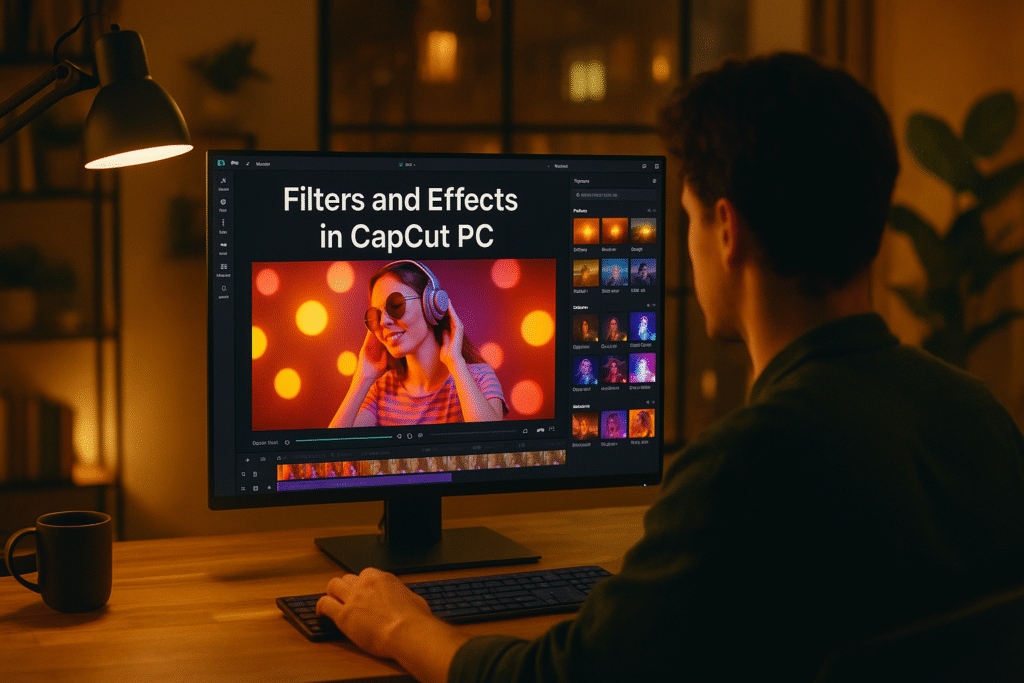
In our previous blog, we explored how to do transitions on CapCut PC; a simple yet powerful way to make your videos flow smoothly from one scene to another. You learned how to drag clips onto the timeline, apply transitions like fade, slide, or zoom, and adjust their duration for the perfect timing. Those smooth transitions instantly made your edits feel more professional and cinematic.
Now that you’ve mastered seamless cuts, it’s time to take things up a notch with filters and effects that completely transform the mood and style of your videos.
Introduction
Ever watched a video that just feels right — the colors pop, the mood clicks, and the whole scene looks cinematic?
Here’s the secret: it’s not luck… it’s filters and effects.
In this post, we’ll uncover 7 simple yet powerful steps to help you use filters and effects in CapCut PC like a pro. Whether you’re creating content for YouTube, reels, or brand videos, these tools will turn your plain clips into scroll-stopping visuals.
And trust me, wait till you try step 6… it’s a total game-changer
Follow these steps exactly and you will be ready to edit.
Start CapCut Desktop and open your project. If you don’t have one yet, create a new project and import your video clips into the timeline.
Look for the Effects tab on the top or left toolbar. Click it — and boom, you’ll see tons of ready-made video effects categorized by type: cinematic, glitch, retro, motion blur, and more.
Step 3: Apply an Effect
Choose one that fits your mood. Simply drag and drop the effect onto your clip. You’ll see the effect applied immediately on the preview screen.
Click the effect layer in your timeline and tweak its intensity, opacity, or duration until it feels just right.
For a more subtle look, go to the Adjustment or Filter tab. Here, you can apply color tones, tweak brightness, contrast, saturation, or choose ready-made filters that set a specific mood — from cinematic to natural daylight tones.
Want to go bold? Combine a visual effect with a filter. For example, pair a cinematic LUT filter with a light leak effect for dreamy footage that pops.
Once your edits are done, play the clip to see how everything blends. When satisfied, hit Export and share your upgraded video with the world
Here’s why filters and effects matter in your videos:
-
🎨 Instant Visual Upgrade: They quickly enhance the overall look and feel of your footage without advanced editing.
-
💫 Set the Mood: Filters help create emotion — from warm and cozy vibes to cinematic or vintage tones.
-
👁️ Grab Attention: Eye-catching effects make your videos stand out in crowded feeds.
-
🧠 Tell a Better Story: The right visual style supports your message and strengthens storytelling.
-
⚡ Save Time: With CapCut PC, you can apply filters and effects in seconds — no professional software needed.
-
🚀 Boost Engagement: Stylish visuals encourage viewers to watch longer and share your content more often.
Filters and effects in CapCut PC are perfect for adding cinematic flair and color correction.
Use the Effects tab to apply visual elements like glow, blur, or glitch.
Use the Filter or Adjustment tab for brightness, contrast, and tone.
Always preview and balance your visuals — subtlety makes your edit look more professional.
Try experimenting with at least two effects today to see what fits your style best.
Don’t overuse effects. Less is often more. Focus on one or two that highlight your story, not distract from it.
In this blog, we explored how to use filters and effects in CapCut PC to enhance the overall look and mood of your videos. You learned how to open your project, apply effects, tweak adjustments, and combine multiple visual layers for creative storytelling. The result? Instant glow-ups for your clips that look like they came straight out of a pro studio.
Here are some ideas:
TikTok videos
School projects
Product promo videos
Gaming clips
Vlogs
CapCut is especially good for AI video ads for ecommerce marketing, meaning you can:
 Create product showcase videos Add auto captions to increase sales Use AI templates for fast results
Perfect for beginners who want to create professional ads.
While the mobile app is great, the desktop version gives you:
-
A bigger screen to edit better
-
More control over effects and text
-
Faster editing and exporting
-
Keyboard shortcuts to save time
-
Better AI features for ads & business
If you want to grow on social media or make marketing videos, desktop editing will make your life easier.
Because video is the future!
By 2030, over 90% of online content will be video.
People who can edit videos will have:
✅ More job opportunities
✅ More business growth
✅ Better marketing results
✅ Bigger social media audience
Learning CapCut now makes you ahead of many others
Using filters and effects in CapCut PC isn’t just about making your videos look pretty; it’s about creating a feeling. Whether you want your content to look cinematic, dreamy, or bold, these tools help you express your style effortlessly. The best part? You don’t need to be a professional editor to achieve stunning results. With just a few clicks, you can transform ordinary clips into visually captivating stories that grab attention and keep viewers watching till the end. So go ahead — experiment, mix, and match different filters and effects, and watch your creativity shine.
And don’t go anywhere. Day 12 is all about speed control to make your videos truly engage and stand out.
- How to download and Install CapCut Desktop in 2026
- Mastering CapCut Basic Editing Tools 2026
- How to import Videos on CapCut PC?
- How to trim videos in CapCut PC?
- Filters and Effects in CapCut PC
- How to cut/clip video in CapCut PC?
- Crop Video in CapCut PC
- How to Freeze Frame in CapCut PC?
- How to Reverse Video in CapCut PC 2026?
- How to add Custom Stickers in CapCut Pc 2026?
- Best Export Settings in CapCut PC?
- How to add overlay in CapCut PC?
- How to remove Green Screen in CapCut PC?
- How to add blur effect in CapCut PC?
- Zoom in Key Frame Step by Step using CapCut Desktop
- How to adjust speed in CapCut PC?
- How to add Music in CapCut PC?
- How to add your own voice in CapCut PC?
- How to add text in CapCut PC?
- How to use CapCut Templates on PC?
- Add Auto Captions on CapCut PC
- Add Transitions in CapCut PC
Find quick answers to the most common questions about Filters and Effects on CapCut PC, and discover how this simple editing step can instantly make your content more engaging, professional, and ready to grab attention in 2026.
Go to the Adjustment or Filter tab inside CapCut Desktop — you’ll find tons of color presets and visual looks there.
Yes! You can layer multiple effects to create a unique, dynamic look for your videos.
No, not if applied correctly. In fact, they can enhance the overall tone and clarity. Just avoid stacking too many. Adding too many effects can result in not delivering the exact message and may seem clutter.
Are filters and effects free in CapCut Desktop?
Most are free, though some premium filters may require an upgrade.
Can I save custom filters for future videos?
Yes, once you find the perfect adjustments, save them as a preset to reuse anytime.
