



Day 17 unlocked the world of stickers, emojis, and expressive overlays; the emotional layer that increases retention and boosts engagement. But even the best-placed stickers lose their magic if your exported video looks soft, blocky, or washed out.
Today we’re expanding that foundation. Your visuals, timing, stickers, and animations deserve to be displayed with maximum clarity. Correct export settings ensure that everything you created — transitions, texts, overlays, color grading, motion tracking — remains sharp and beautifully preserved.
Great editing gets you 50 percent of the way.
Export mastery gets you the other 50.
Let’s unlock it.
Most beginners focus heavily on editing techniques but overlook one crucial stage: the export. Export settings are not just technical details — they’re quality insurance.
The wrong export settings can destroy your video by:
Introducing blur
Crushing colors
Reducing motion clarity
Causing blocky or pixelated areas
Adding flicker or ghosting
Making text unreadable on mobile
Triggering algorithm compression penalties
Here’s the truth:
Social media platforms will ALWAYS compress your video.
Your job is to export at the highest safe quality before that compression happens.
When you understand the best export settings in CapCut PC, you guarantee:
Cleaner details
Brighter colors
Sharper text
Smooth motion
Higher retention
Better algorithm performance
More professional results for clients
Good editing impresses viewers.
Perfect export settings impress algorithms and clients.
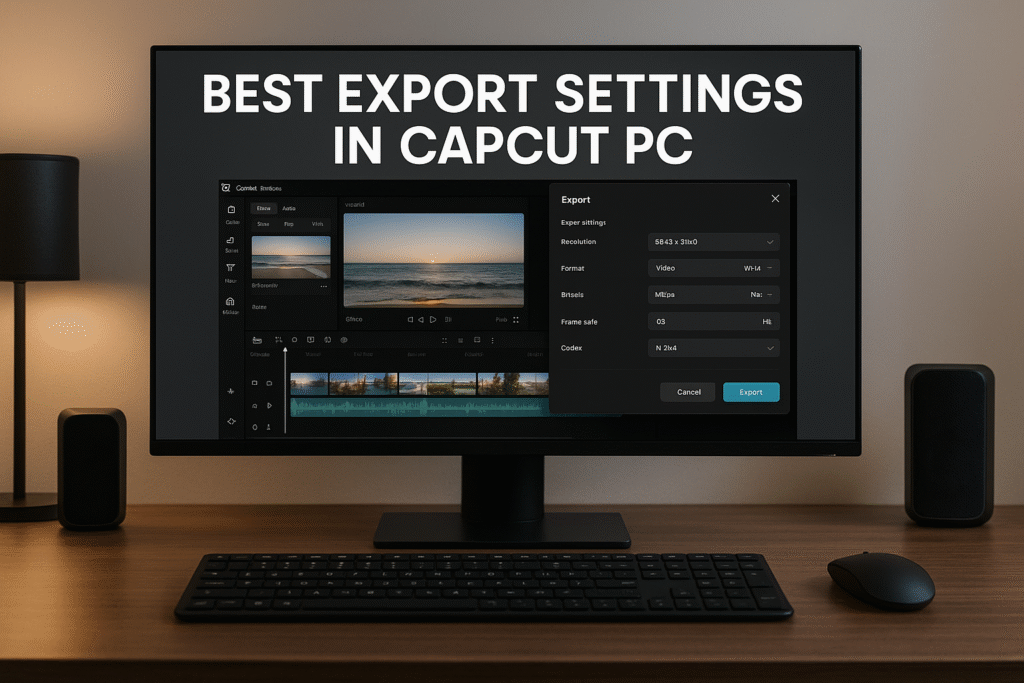
Before diving into the best settings, you need to understand the options CapCut gives you. Here’s a breakdown in simple, actionable terms:
1. Resolution
This determines the number of pixels in your video.
1080p (Full HD)
Best for TikTok, Reels, Shorts, moderate-quality YouTube uploads.1440p (2K)
Higher clarity than 1080p, looks premium.2160p (4K)
Best for YouTube, cinematic footage, commercials, and client work.4320p (8K)
Not recommended unless needed — huge files and unnecessary for social media.
Resolution = sharpness + detail.
2. Frame Rate (FPS)
Frames per second determine the smoothness of motion.
24 FPS → cinematic films
30 FPS → YouTube / tutorials / vlogs
60 FPS → gaming, fast action, TikTok/Reels clarity
120 FPS → rarely needed unless doing slow-motion work
Always match your export FPS to your project FPS unless you want jitter or motion artifacts.
3. Bitrate
This is the BIGGEST quality factor after resolution.
Higher bitrate = more clarity + less compression.
CapCut offers:
Low
Medium
High
Custom (Recommended)
Use Custom whenever possible.
4. Format (Codec / Container)
CapCut exports to:
MP4 (H.264 codec) → default & best
MOV → larger files, rarely needed
ProRes (some systems) → ultra-high-quality, big files
MP4 is ideal for social media, clients, and fast delivery.
5. Audio Settings
Usually:
Sample rate: 48 kHz
Bitrate: 320 kbps (Maximum)
This keeps your VO, music, and sound effects crisp.
6. Advanced Options
Depending on your version:
Variable bitrate (VBR)
Constant bitrate (CBR)
Hardware encoding
GPU acceleration
Render quality presets
All of these influence final output quality and speed.
Let’s break it down like a professional editor; simple steps with maximum creative control.
Finish all cuts, effects, texts, stickers, overlays, transitions, and color grading.
You’ll find it at the top-right of the interface.
Step 3: Choose File Name & Location
Organize your exports — clients love clean file structure.
Choose from:
1080p → standard
1440p → premium
2160p → 4K clarity
Match your project settings:
24 fps
30 fps
60 fps
Never switch randomly — it causes weird motion.
Choose High or Custom (best option):
10–16 Mbps → 1080p
20–40 Mbps → 1440p
40–60 Mbps → 4K
This keeps your video sharp even after TikTok/Instagram compression.
Choose:
Format: MP4
Codec: H.264
Sample rate: 48 kHz
Bitrate: 320 kbps
Turn ON for faster exports.
Now let CapCut render.
Do not use your computer heavily during export to avoid glitches.
Now the part you came for.
Below are the best settings for each platform.
Resolution: 1080p
FPS: 24 or 30
Bitrate: 16 Mbps
Format: MP4
Codec: H.264
Audio: 48 kHz / 320 kbps
Perfect clarity and manageable file size.
Resolution: 2160p (4K)
FPS: 24/30/60 (match timeline)
Bitrate: 45–60 Mbps
Codec: H.264
Format: MP4
4K always performs better on YouTube’s algorithm because it triggers higher-quality processing.
Resolution: 1080 x 1920
FPS: 60 fps
Bitrate: 10–14 Mbps
Format: MP4
High motion clarity, ideal for short-form content.
Resolution: 1080p (horizontal) or 1080×1350 (vertical)
FPS: 30 fps
Bitrate: 10–12 Mbps
Professional, clean, platform-optimized.
Resolution: 2160p (4K)
FPS: 24/30 fps
Bitrate: 50+ Mbps
Codec: H.264
Format: MP4 or MOV
High-quality delivery files for agencies and brands.
Depending on your version:
Variable bitrate (VBR)
Constant bitrate (CBR)
Hardware encoding
GPU acceleration
Render quality presets
All of these influence final output quality and speed.
Today we explored how export settings determine the final look, feel, and performance of your videos in CapCut PC. You learned the step-by-step process of choosing resolution, bitrate, format, frame rate, and compression settings. We covered why each setting matters, how to match export options with your platform (YouTube, TikTok, Facebook, client delivery), and how to avoid the ten most common export mistakes. You also discovered powerful pro tips that ensure your videos look crisp, clean, and professional every time. By applying these export settings, you can consistently deliver high-quality videos that stand out in 2026’s fast-paced digital world.
Here are some ideas:
TikTok videos
School projects
Product promo videos
Gaming clips
Vlogs
CapCut is especially good for AI video ads for ecommerce marketing, meaning you can:
 Create product showcase videos Add auto captions to increase sales Use AI templates for fast results
Perfect for beginners who want to create professional ads.
While the mobile app is great, the desktop version gives you:
-
A bigger screen to edit better
-
More control over effects and text
-
Faster editing and exporting
-
Keyboard shortcuts to save time
-
Better AI features for ads & business
If you want to grow on social media or make marketing videos, desktop editing will make your life easier.
Because video is the future!
By 2030, over 90% of online content will be video.
People who can edit videos will have:
✅ More job opportunities
✅ More business growth
✅ Better marketing results
✅ Bigger social media audience
Learning CapCut now makes you ahead of many others
You’ve now mastered the best export settings in CapCut PC, one of the most overlooked parts of video creation. High-quality exporting isn’t optional — it’s essential. It determines how viewers perceive your video, how algorithms rank your content, and how professional your work appears to clients.
Remember:
Editing attracts attention
Export quality keeps attention
Today’s lesson ensures everything you create looks sharp, clean, and professional.
Your Day 18 challenge:
Export one clip in 1080p using custom settings and compare it to CapCut’s default export. The difference will surprise you.
See you tomorrow — Day 19 is going to be big.
Find quick answers to the most common questions about the BEST Export Settings in CapCut PC and discover how this simple editing step can instantly make your content more engaging, professional, and ready to grab attention in 2026.
Because your bitrate is too low. Increase to 12–16 Mbps for 1080p.
Only if your footage was recorded or edited in 60 fps.
Why does TikTok ruin my quality?
TikTok compresses aggressively. Export in the highest quality possible.
Is 4K worth it for YouTube?
Yes — YouTube processes 4K videos at higher bitrates.
MP4 or MOV?
MP4 is better for social media. MOV for high-end clients.
Why is my audio muffled?
Use 48 kHz and 320 kbps bitrate.
Can CapCut export 8K?
Yes, but it’s unnecessary.
Why is my file size too large?
Your bitrate is extremely high — reduce slightly.
Should I use hardware acceleration?
Yes, if your PC supports it.
Why do colors change after export?
Your project’s color profile or display settings may differ.
