



Yesterday, we learned how to add your own voice on CapCut PC turning your video into something that speaks.
Now, it’s time to make it shout.
Because here’s the truth:
Even a great voiceover can fall flat if your visuals don’t communicate the message.
So today, we’ll learn how to add text in CapCut Desktop bold, animated, attention-grabbing words that make your video impossible to scroll past.
Ready? Let’s go.
Modern video content is no longer just about visuals.
Today, successful content creators, marketers, and business owners use text strategically to:
- stop scrolling
- improve watch time
- explain products faster
- increase ad conversions
- strengthen branding
- improve storytelling
That is why learning how to add text in CapCut Desktop properly has become one of the most important skills in content creation and video advertising in 2026.
Whether you create:
- TikTok videos
- Instagram Reels
- YouTube Shorts
- ecommerce ads
- UGC videos
- AI-generated content
- social media campaigns
the way you use text directly affects how audiences engage with your content.
This guide will teach you not only how to add text in CapCut Desktop, but also how professional creators and marketers use text and CapCut Desktop text animation to create high-performing social media content and advertisements.
Most beginners think text is only used for subtitles.
Professional creators and advertisers use text for:
- hooks
- storytelling
- emotional emphasis
- branding
- call-to-actions
- ad messaging
- audience retention
- conversion optimization
For example:
- bold opening text increases stopping power
- animated captions improve watch time
- highlighted keywords increase comprehension
- CTA overlays improve conversions
- branded typography improves recognition
Modern audiences scroll extremely fast.
Text helps creators and brands communicate instantly.
Most business owners already know video content works.
The problem is:
- they don’t have time to edit videos
- they don’t understand retention editing
- they struggle with ad creatives
- they don’t know how to structure hooks
- they cannot consistently produce engaging content
That is why many brands fail to create ads that actually convert.
Professional video editing is no longer just:
“putting clips together”
It is now:
- psychology
- pacing
- branding
- storytelling
- retention optimization
If you are a business owner who does not have time to create high-converting content, our team can help create:
- social media ads
- UGC-style videos
- AI-powered ad creatives
- short-form content
- branded marketing videos
- retention-focused edits
using professional CapCut Desktop workflows designed for modern platforms.
CapCut Desktop allows creators and marketers to:
- add captions
- create animated text
- build hooks
- create CTA overlays
- design cinematic typography
- highlight product benefits
- create ad messaging
- improve storytelling flow
This makes it one of the best editing tools for content creators and businesses creating short-form video ads.
Follow these steps exactly and you will be ready to edit.
Before adding text:
- organize clips properly
- trim unnecessary sections
- clean up pacing
- structure your message
Professional creators always build timeline structure first.
Related Tutorial:
Inside CapCut Desktop:
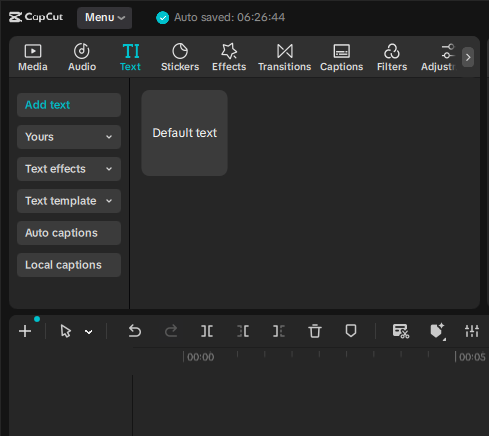
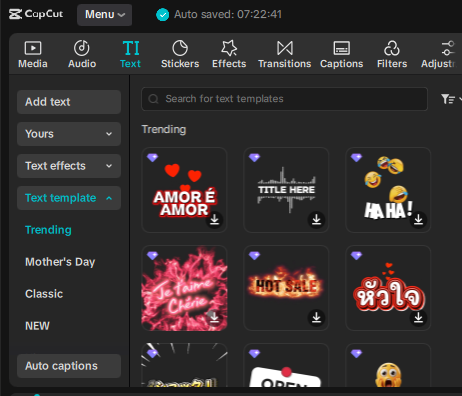
- click the “Text” tab
- select:
- Add Text
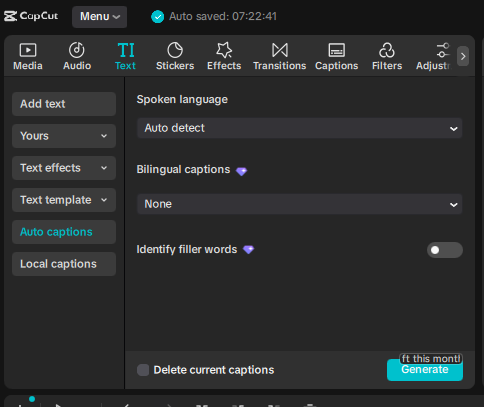
- Auto Captions
- AI Captions
- Text Templates
You can now place text anywhere on the timeline.
Step 3: Customize Your Text
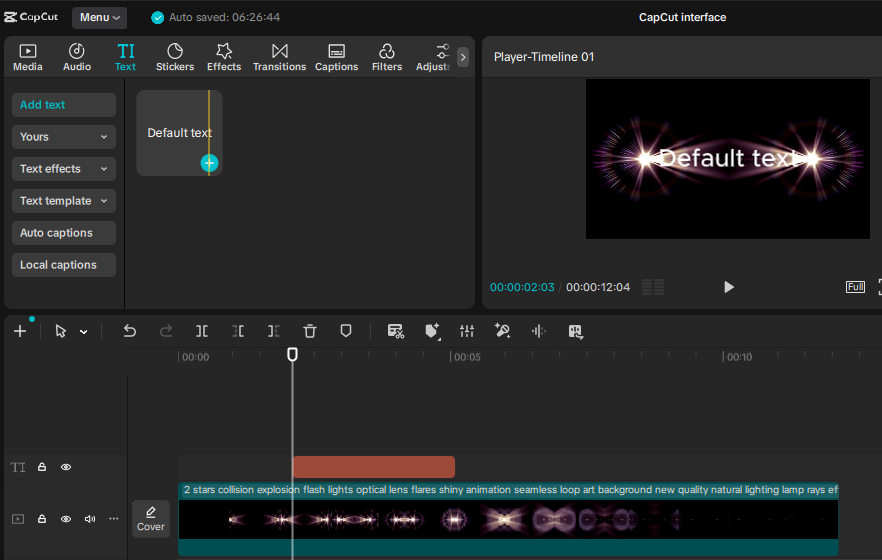
Now hit Add Text.
You’ll see a text box appear right on your video preview.
That’s your canvas — type whatever message you want.
Write something short, sharp, and easy to read.
Maybe it’s your video title, a call-to-action, or a quote.
Keep it punchy — you want viewers to read it fast.
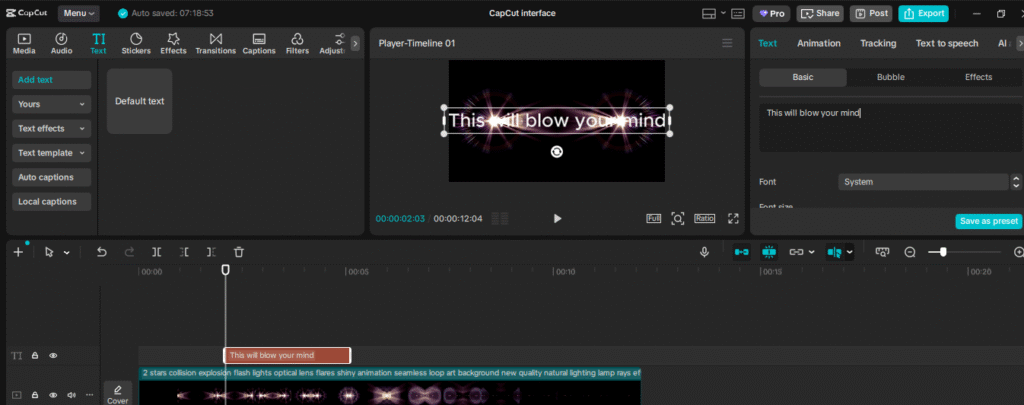
CapCut Desktop allows you to adjust:
- font style
- size
- colors
- shadows
- outlines
- spacing
- animation
- opacity
Professional creators maintain:
- readable fonts
- consistent branding
- clean visual hierarchy
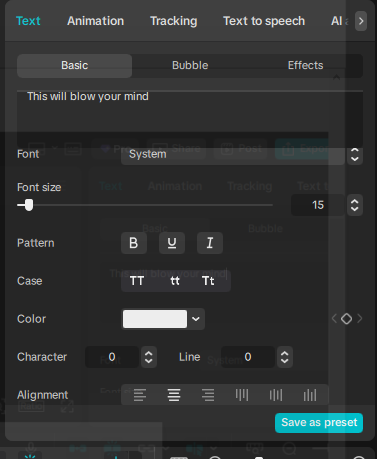
Change the font, size, color, and alignment until it fits your brand.
You can even upload your own custom fonts if you want a signature style.
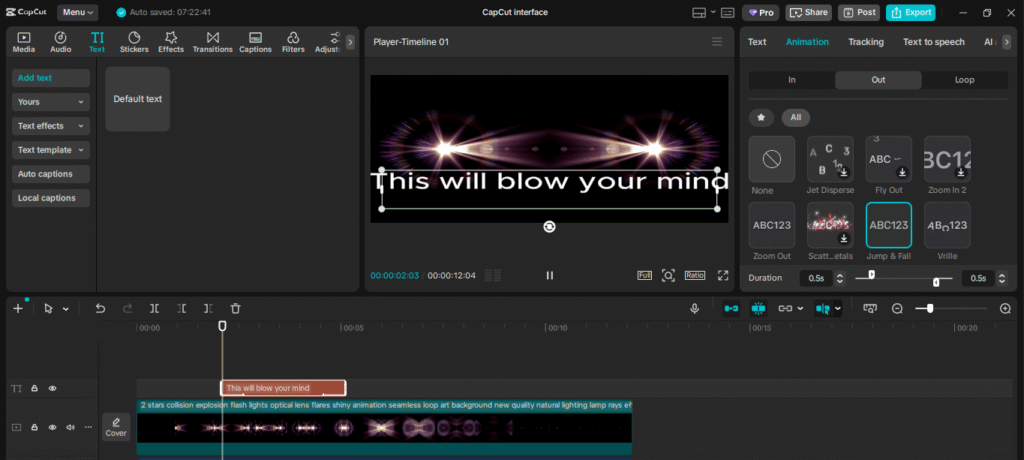
Don’t let your text just sit there — make it move.
Click on the Animation tab and choose effects like Typewriter, Fade In, or Pop.
A little motion goes a long way.
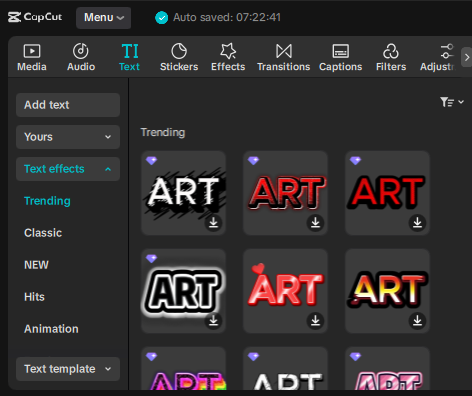
Finally, polish it up.
If you want to use Pre made templates or effects, you can use them also.
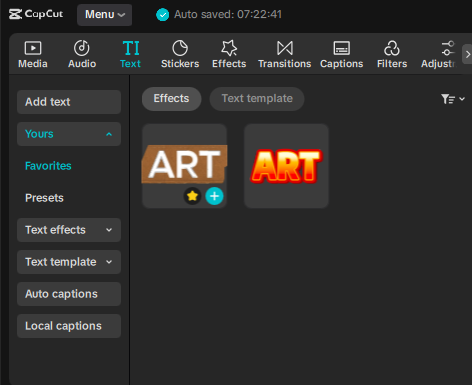
You can also save your brand fonts and captions under “Yours” Tab.
.
Different font styles create different emotional responses.
Bold Fonts
Best for:
- hooks
- TikTok ads
- attention-grabbing content
- fast-paced short-form videos
Best Font Examples:
- Bebas Neue
- Anton
- Impact
- League Spartan
- Montserrat ExtraBold
- Barlow Condensed Bold
- Oswald Bold
- Archivo Black
These fonts are effective because they:
- stop scrolling quickly
- remain readable on mobile devices
- create strong visual impact
- improve hook visibility in the first 3 seconds
Clean Minimal Fonts
Best for:
- ecommerce ads
- UGC content
- educational videos
- professional brand content
Best Font Examples:
- Poppins
- Inter
- Helvetica
- Roboto
- Open Sans
- Lato
- Avenir
- Proxima Nova
These fonts create:
- clean visual hierarchy
- modern branding
- professional presentation
- better readability for product-focused content
Cinematic Fonts
Best for:
- storytelling
- emotional edits
- premium branding
- cinematic social media videos
Best Font Examples:
- Cinzel
- Playfair Display
- Cormorant Garamond
- Bodoni
- Trajan Pro
- Libre Baskerville
- Abril Fatface
- Vogue-inspired Serif Fonts
These fonts help create:
- emotional atmosphere
- luxury branding
- cinematic storytelling
- premium visual identity
They are commonly used in:
- luxury ads
- cinematic reels
- emotional brand campaigns
- fashion and beauty content.
| Step | Action | Purpose |
|---|
| 1 | Open your project | Prepare your workspace |
| 2 | Go to the text tab | Access text tools |
| 3 | Click “Add Text” | Insert new text layer |
| 4 | Type your message | Add your content |
| 5 | Customize it | Match your brand style |
| 6 | Animate | Bring it to life |
| 7 | Add shadow/background | Improve readability |
CapCut Desktop text animation helps creators add movement and energy to videos.
Popular animations include:
- pop-up text
- zoom effects
- fade animations
- slide transitions
- typewriter effects
- bounce text
Professional editors use CapCut Desktop text animation to:
- emphasize key points
- improve pacing
- guide viewer attention
- increase retention
Professional marketers use text strategically to:
- highlight offers
- display pricing
- create urgency
- reinforce messaging
- improve conversion rates
Examples:
- “LIMITED TIME OFFER”
- “STOP SCROLLING”
- “50% OFF TODAY”
- “3 Common Skincare Mistakes”
- “Watch Before Buying”
Strong text placement increases ad performance dramatically.
The first 3 seconds determine whether people continue watching.
That is why creators use:
- large bold hooks
- animated text
- moving captions
- emotional headlines
to stop scrolling instantly.
Examples:
- “Nobody talks about this…”
- “Your ads are failing because of this…”
- “3 editing mistakes destroying your retention…”
Good text hooks improve watch time significantly.
Modern short-form editing depends heavily on retention psychology.
Text helps:
- maintain viewer focus
- improve clarity
- explain information quickly
- reinforce spoken dialogue
- create visual pacing
This is especially important for:
- social media ads
- UGC content
- tutorials
- AI-generated videos
Auto Captions
Best for:
- talking head videos
- podcasts
- tutorials
- fast workflow
Manual Text
Best for:
- cinematic edits
- branded ads
- premium content
- storytelling videos
Most professional creators combine both together.
TikTok & Reels
Use:
- large bold captions
- animated keywords
- fast-moving typography
Best Font Examples:
- Bebas Neue
- Anton
- Montserrat ExtraBold
- Poppins Bold
- League Spartan
- Barlow Condensed Bold
These fonts work well because they are:
- bold
- easy to read on mobile
- attention-grabbing
- high-retention focused
YouTube Shorts
Use:
- clean readable captions
- hook-focused text
- storytelling overlays
Best Font Examples:
- Poppins SemiBold
- Open Sans
- Montserrat
- Inter
- Roboto
- Lato Bold
These fonts are ideal for:
- educational content
- storytelling videos
- talking head content
- tutorials
because they maintain readability during longer viewing sessions.
Ecommerce & UGC Ads
Use:
- clean commercial fonts
- CTA overlays
- product-focused text
- conversion messaging
Best Font Examples:
- Helvetica
- Gotham
- Proxima Nova
- Futura
- Avenir
- Gilroy
These fonts create:
- premium branding
- professional commercial feel
- clean product presentation
- stronger ad credibility
which is important for ecommerce and paid advertising content.
Overusing Animations
Too much movement becomes distracting.
Poor Color Contrast
Unreadable text reduces engagement.
Too Many Fonts
Professional editors maintain consistency.
Excessive Text
Too much information overwhelms viewers.
Overusing Animations
Too much movement becomes distracting.
Poor Color Contrast
Unreadable text reduces engagement.
Too Many Fonts
Professional editors maintain consistency.
Excessive Text
Too much information overwhelms viewers.
Many business owners struggle with:
- editing
- content strategy
- ad creatives
- pacing
- storytelling
- retention optimization
Our team helps brands create:
- high-converting social media ads
- UGC-style videos
- AI-generated ad creatives
- short-form video campaigns
- creator-style content
- branded social media videos
designed specifically for:
- TikTok
- Instagram Reels
- Facebook ads
- YouTube Shorts
so business owners can focus on growing their brand while we handle the content creation process.
Learning how to add text in CapCut Desktop is no longer just a beginner editing skill.
For modern creators, marketers, and brands, text has become:
- a storytelling tool
- a retention strategy
- a branding asset
- a conversion optimization tool
Professional creators use CapCut Desktop text animation strategically to:
- improve watch time
- stop scrolling
- increase engagement
- strengthen branding
- improve ad performance
Whether you are a content creator building your personal brand or a business owner needing better social media ads, mastering text editing inside CapCut Desktop can dramatically improve your content quality and marketing performance.
Understanding how to add text in CapCut Desktop is no longer optional for creators, marketers, and modern businesses.
Text and CapCut Desktop text animation have become essential tools for:
- storytelling
- branding
- retention
- audience engagement
- conversion optimization
The creators and brands succeeding in 2026 are not simply posting random videos.
They are creating:
- retention-focused edits
- strategic hooks
- visually engaging content
- high-converting ads
- professional storytelling experiences
If you combine strong editing workflows, intentional typography, CapCut Desktop text animation, and audience psychology together, you can create social media content and advertisements that perform significantly better across TikTok, Instagram Reels, YouTube Shorts, Facebook ads, and modern digital marketing platforms.
Here are some ideas:
TikTok videos
School projects
Product promo videos
Gaming clips
Vlogs
CapCut is especially good for AI video ads for ecommerce marketing, meaning you can:
 Create product showcase videos Add auto captions to increase sales Use AI templates for fast results
Perfect for beginners who want to create professional ads.
While the mobile app is great, the desktop version gives you:
-
A bigger screen to edit better
-
More control over effects and text
-
Faster editing and exporting
-
Keyboard shortcuts to save time
-
Better AI features for ads & business
If you want to grow on social media or make marketing videos, desktop editing will make your life easier.
Because video is the future!
By 2030, over 90% of online content will be video.
People who can edit videos will have:
✅ More job opportunities
✅ More business growth
✅ Better marketing results
✅ Bigger social media audience
Learning CapCut now makes you ahead of many others
Key Takeaway
When you add text in CapCut Desktop, you’re not just adding captions —
You’re giving your message power.
Use it wisely.
- How to download and Install CapCut Desktop in 2026
- Mastering CapCut Basic Editing Tools 2026
- How to import Videos on CapCut PC?
- How to trim videos in CapCut PC?
- Filters and Effects in CapCut PC
- How to cut/clip video in CapCut PC?
- Crop Video in CapCut PC
- How to Freeze Frame in CapCut PC?
- How to Reverse Video in CapCut PC 2026?
- How to add Custom Stickers in CapCut Pc 2026?
- Best Export Settings in CapCut PC?
- How to add overlay in CapCut PC?
- How to remove Green Screen in CapCut PC?
- How to add blur effect in CapCut PC?
- Zoom in Key Frame Step by Step using CapCut Desktop
- How to adjust speed in CapCut PC?
- How to add Music in CapCut PC?
- How to add your own voice in CapCut PC?
- How to add text in CapCut PC?
- How to use CapCut Templates on PC?
- Add Auto Captions on CapCut PC
- Add Transitions in CapCut PC
Find quick answers to the most common questions about how to add text in CapCut Desktop, and discover how this simple editing step can instantly make your content more engaging, professional, and ready to grab attention in 2026.
To add text in CapCut Desktop, open your project, click the Text tab, then select Add Text. Type your message, adjust the font, size, and color, and place it wherever you want on your video.
CapCut Desktop text animation allows creators to add animated motion effects to text, including fades, zooms, slides, pop-ups, and bounce effects to improve engagement and storytelling.
Use contrast colors, add a shadow or background, and avoid overly fancy fonts. Keeping your text clean and simple ensures it stays easy to read on all screens.
Can I use custom fonts in CapCut Desktop?
Absolutely. CapCut allows you to upload and use your own fonts to match your brand’s identity or style. You can do this in the text customization panel after adding your text.
Why should I use text in my videos?
Adding text helps communicate key points, improves engagement, and ensures your message is clear — even when viewers watch without sound. It’s a must-have feature for professional and social media videos alike.
Why is text important in social media ads?
Text helps business owners and marketers communicate offers, hooks, CTAs, and product benefits quickly, improving viewer retention and ad conversion rates.
Can CapCut Desktop text animation improve video retention?
Yes. Strategic CapCut Desktop text animation helps maintain attention, emphasize important information, and improve pacing in short-form content.Text helps business owners and marketers communicate offers, hooks, CTAs, and product benefits quickly, improving viewer retention and ad conversion rates.
Is CapCut Desktop good for creating ads?
Yes. CapCut Desktop is widely used for:
- TikTok ads
- Instagram Reels
- UGC videos
- AI-generated ads
- ecommerce marketing videos
- branded short-form content
What are the best fonts for video ads?
Bold fonts work best for hooks and retention-focused videos, while clean minimal fonts are ideal for ecommerce ads and UGC content.
Should I use auto captions or manual text?
Auto captions are best for fast workflows and talking-head videos, while manual text is better for premium branding, storytelling, and cinematic edits.
How can business owners create better social media ads?
Business owners should focus on:
- strong hooks
- clear CTA text
- retention-focused editing
- consistent branding
- engaging visual pacing
Many brands also outsource editing and ad creation to professional content teams to save time and improve quality.
What type of videos can be created using CapCut Desktop?
Creators can produce:
- TikTok videos
- Instagram Reels
- YouTube Shorts
- UGC ads
- AI-generated content
- ecommerce ads
- promotional videos
- cinematic edits
Can your team help create ads and video content for businesses?
Yes. We help businesses and brands create:
- social media ads
- short-form videos
- UGC content
- AI-powered ad creatives
- branded content
- retention-focused marketing videos
optimized for modern social media platforms.
