



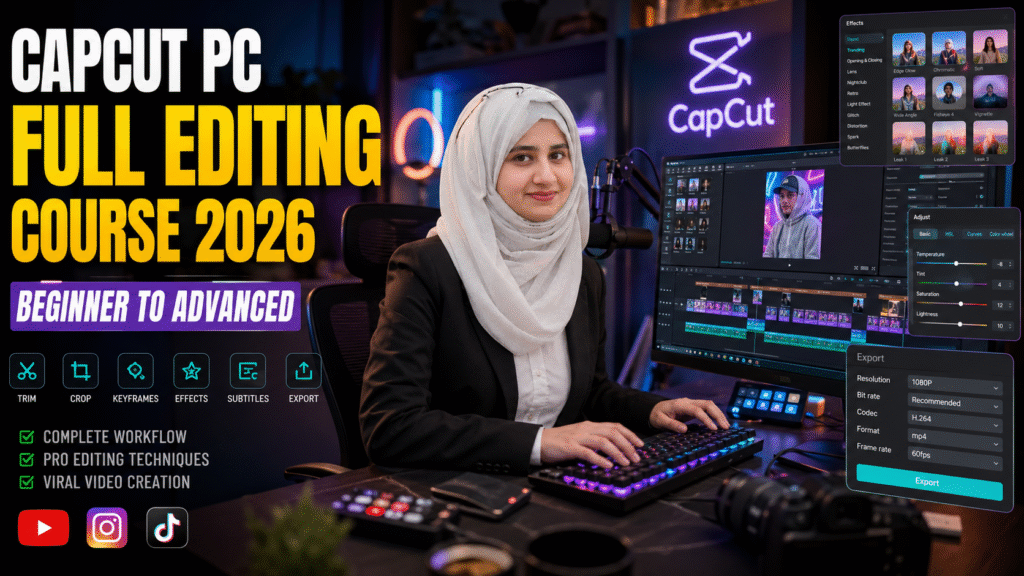
Video editing has changed completely.
Modern creators no longer need expensive editing software or years of technical training to produce professional content. Today, platforms like CapCut PC allow content creators and video editors to create high-quality videos faster while maintaining professional editing quality.
But there is one major problem.
Most beginners learn CapCut randomly:
- one tutorial today
- another effect tomorrow
- random transitions next week
As a result, they never understand the complete editing workflow.
This CapCut PC Full Editing Course 2026 is designed differently.
Instead of isolated tutorials, this guide teaches the full creator workflow from beginner to advanced editing so you can build professional skills step-by-step.
Whether you create:
- TikTok videos
- Instagram Reels
- YouTube Shorts
- UGC content
- AI ads
- cinematic edits
- social media campaigns
this complete CapCut PC Beginner Tutorial will help you understand how professional editors structure and edit content efficiently.
CapCut PC became one of the most popular editing tools because it combines:
- beginner-friendly editing
- fast workflow
- AI-powered tools
- professional visual effects
- optimized short-form editing
- first FREE open source tool
Unlike traditional editing software that requires complicated timelines and advanced technical knowledge, CapCut focuses on modern content creation speed.
This makes it perfect for:
- content creators
- freelance video editors
- social media marketers
- AI content creators
- UGC creators
- faceless YouTube creators
This course covers the complete editing pipeline used by modern creators.
Beginner Skills
- importing footage
- understanding timeline basics
- trimming clips
- cutting videos
- cropping footage
- resizing for social media
Intermediate Skills
- transitions
- keyframes
- text animation
- sound synchronization
- effects workflow
- motion editing
Advanced Skills
- retention editing
- storytelling techniques
- pacing psychology
- cinematic editing
- AI-assisted workflows
- export optimization
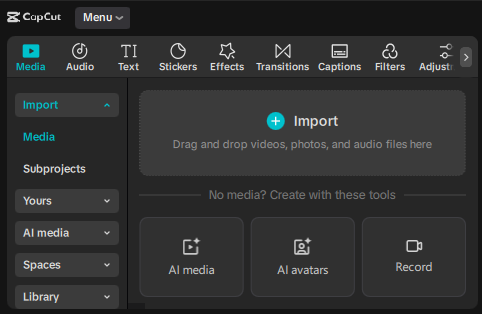
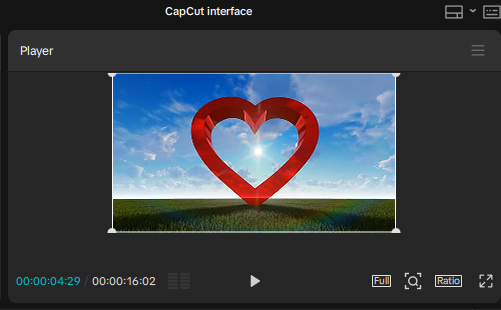
Before creating professional edits, you must understand the editing workspace properly.
The main sections include:
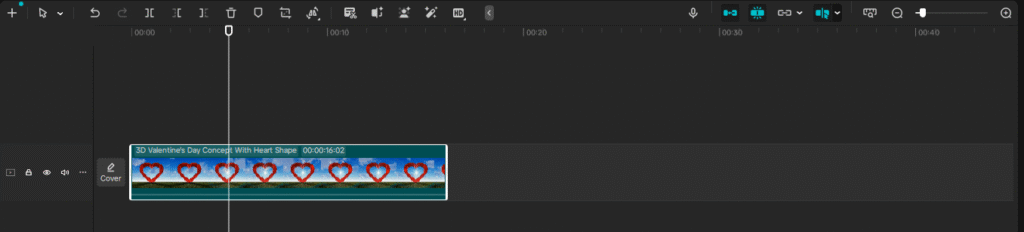
The timeline is where professional editing happens:
- cutting
- trimming
- transitions
- syncing
- effects
- motion editing
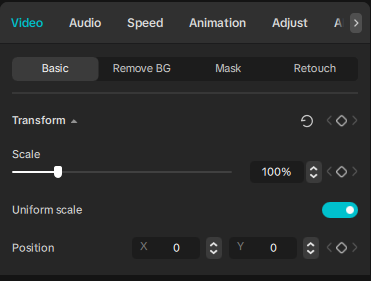
The Professional Editing Workflow (Most Important Section)
Most beginners immediately start adding effects.
Professional editors follow a structured workflow.
Before editing begins:
- organize clips properly
- separate audio
- arrange footage logically
Good organization speeds up editing dramatically.
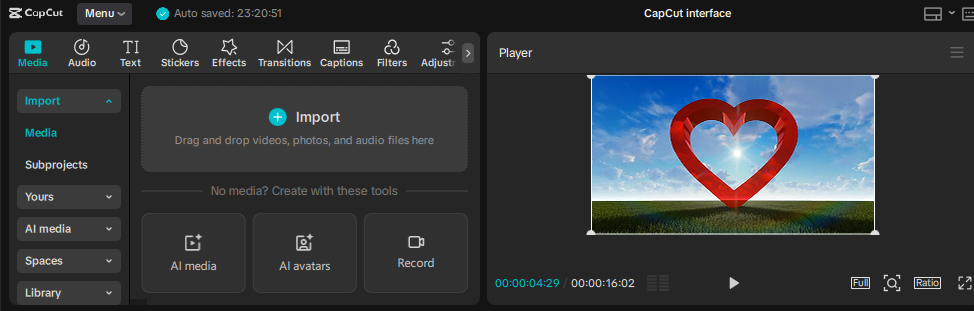
Detailed Tutorial:
👉 How to Import Videos in CapCut PC
Topics covered:
- file formats
- media organization
- drag-and-drop workflow
- fixing import issues
Trimming is one of the most important editing skills.
Professional pacing:
- removes boring moments
- increases watch time
- improves audience retention
Bad pacing makes videos feel slow even when the footage is good.
Detailed Tutorial:
👉 How to Trim Videos in CapCut PC
Topics covered:
- split tool
- timeline editing
- retention cuts
- pacing optimization
Understanding Retention Editing
Modern short-form content depends heavily on viewer retention.
Professional editors:
- remove pauses
- tighten scenes
- accelerate pacing
- reduce dead space
This creates faster and more engaging content.
Retention editing is one of the biggest differences between amateur and professional creators.
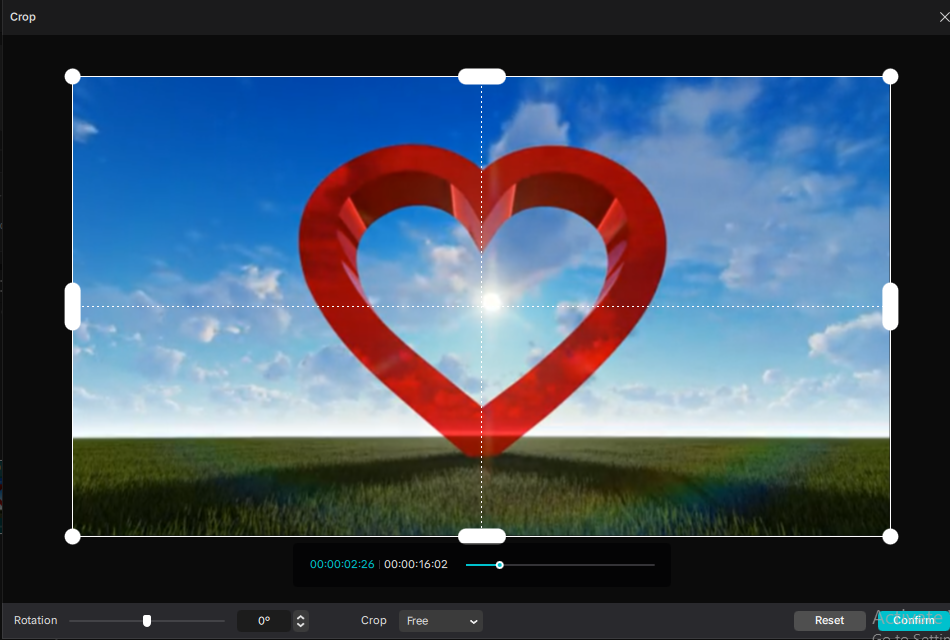
Cropping is not just resizing.
It controls:
- composition
- viewer focus
- subject positioning
- platform optimization
Many beginners over-crop footage and destroy visual balance.
Detailed Tutorial:
👉 How to Crop Video in CapCut PC
Topics covered:
- aspect ratios
- framing
- vertical editing
- rule of thirds
- social media composition

Vertical Editing for TikTok, Reels & Shorts
Modern platforms prioritize vertical content.
That means creators must understand:
- safe zones
- mobile framing
- vertical composition
- subject alignment
Good framing increases perceived production quality instantly.
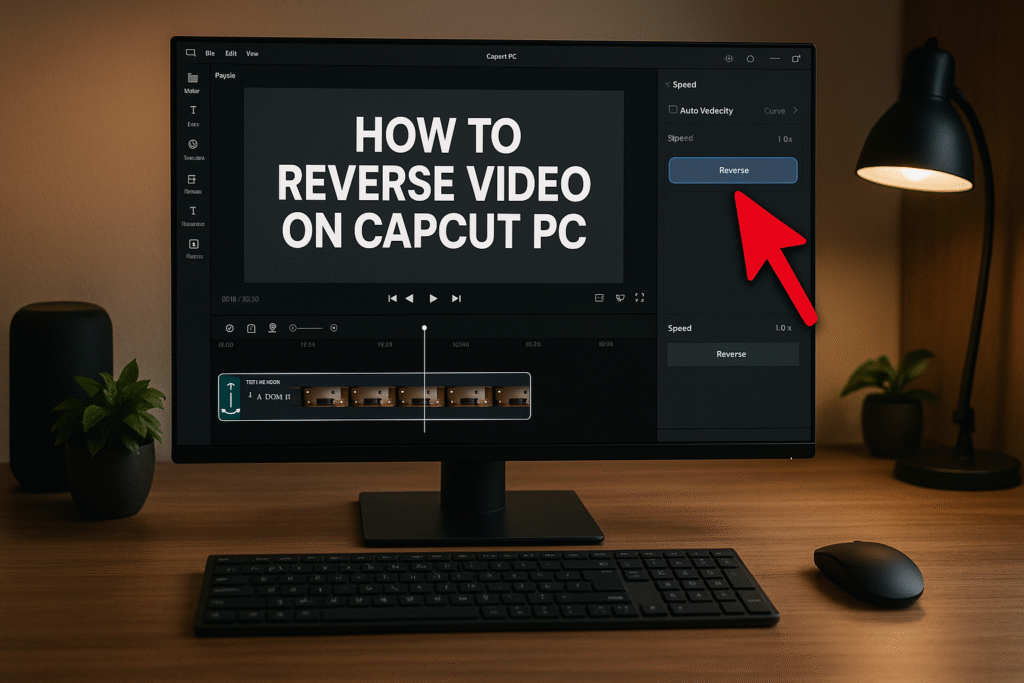
Reverse effects are often used for:
- transitions
- cinematic reveals
- storytelling
- satisfying edits
However, professional editors use them carefully.
Detailed Tutorial:
👉 How to Reverse Video in CapCut PC
Topics covered:
- reverse effect
- creative transitions
- cinematic usage
- storytelling applications
Common Beginner Mistakes in CapCut PC
Most beginners:
- overuse effects
- add unnecessary transitions
- ignore pacing
- over-zoom footage
- use poor audio balancing
Professional editing is usually:
simple editing done intentionally
Audio Editing Fundamentals for Professional Videos
Good visuals with bad audio still feel low quality.
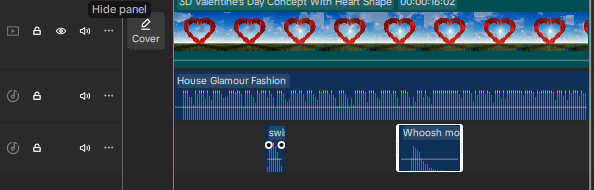
Every content creator should learn:
- beat syncing
- music timing
- sound balancing
- emotional pacing
- transition sound design
Audio is one of the strongest emotional tools in editing.
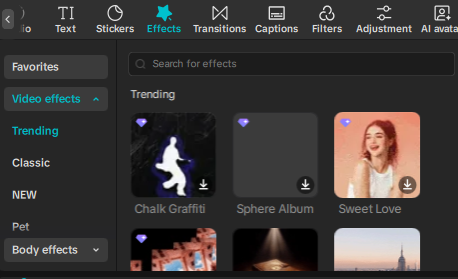
Using Effects Properly in CapCut PC
Effects should improve storytelling — not replace it.
Bad editing:
- random effects
- excessive shakes
- distracting transitions
Good editing:
- clean motion
- intentional visual flow
- smooth pacing
Professional creators focus on clarity before complexity.
Advanced Editing Techniques Used by Viral Creators
Once you master basics, focus on advanced creator psychology.
Retention Editing
Keeping viewers engaged longer.
Pattern Interrupts
Changing visuals before viewers lose attention.
Motion-Based Storytelling
Using movement to create emotion and energy.
Hook Optimization
Your first 3 seconds determine whether viewers continue watching.
Export settings directly affect final video quality.
Recommended Settings for Reels, TikTok & Shorts
- 1080×1920 resolution
- H.264 codec
- High bitrate
- 30 FPS or 60 FPS
Recommended Settings for YouTube
- 1920×1080
- MP4 format
- High bitrate export

CapCut PC is now widely used for:
- AI ads
- CGI videos
- UGC editing
- faceless content
- AI-generated storytelling
- automation workflows
Many creators combine:
- AI-generated visuals
- voiceovers
- CapCut editing
- motion graphics
to create professional social media content quickly.
Beginner to Advanced Learning Path
Beginner Stage
Learn:
- importing
- trimming
- cropping
- timeline basics
Intermediate Stage
Learn:
- transitions
- effects
- text animation
- audio syncing
- motion editing
Advanced Stage
Learn:
- storytelling
- retention psychology
- cinematic pacing
- AI workflows
- creator branding
Summary
This CapCut PC Full Editing Course 2026 is designed to help content creators and video editors understand the complete editing workflow instead of learning disconnected tools individually.
By mastering:
- trimming
- cropping
- pacing
- transitions
- audio
- storytelling
- retention editing
you can create videos that look more professional and perform better on modern social media platforms.
Whether you are a beginner creator or an aspiring professional editor, building strong workflow fundamentals inside CapCut PC can dramatically improve your editing quality and content production speed.
Summary
Most people use CapCut casually.
Professional creators use CapCut strategically.
The difference is not the software itself — it is the workflow, pacing, composition, and storytelling behind the edit.
If you focus on mastering:
- editing structure
- viewer psychology
- retention pacing
- clean composition
- intentional storytelling
you can turn simple footage into highly engaging content that performs professionally across TikTok, Instagram Reels, YouTube Shorts, and modern social media platforms.
This CapCut PC Beginner Tutorial is designed to become the central learning hub for creators who want to move from beginner editing to advanced professional workflows step-by-step.
Find quick answers to the most common questions about CapCut PC Full Editing Course 2026, and discover how this simple editing step can instantly make your content more engaging, professional, and ready to grab attention in 2026.
This CapCut PC Full Editing Course 2026 is a complete beginner to advanced learning guide designed for content creators and video editors who want to master professional video editing workflows using CapCut PC.
You will learn:
- video trimming
- cropping and framing
- transitions
- effects
- audio editing
- keyframes
- retention editing
- export settings
- cinematic editing workflows
Can content creators use the CapCut PC Full Editing Course 2026 for TikTok and Reels?
Yes, the course is specifically designed for modern short-form content creation including TikTok, Instagram Reels, YouTube Shorts, UGC ads, and social media marketing videos.
Does the CapCut PC Full Editing Course 2026 cover advanced editing techniques?
Yes, this guide includes advanced creator-focused topics such as:
- storytelling
- pacing psychology
- hook optimization
- retention editing
- motion-based editing
- AI-assisted workflows
Is CapCut PC good for professional video editing?
CapCut PC is one of the best beginner-friendly editing tools for creators who want fast and professional-looking results. Many content creators and freelance video editors use CapCut PC for short-form content, ads, and social media videos.
Most tutorials teach random tools individually. This CapCut PC Full Editing Course 2026 focuses on the complete editing workflow from beginner to advanced, helping creators understand professional editing structure instead of isolated features.
Yes, the course includes cinematic editing concepts such as:
- pacing
- motion storytelling
- transitions
- emotional timing
- visual composition
- professional editing flow
Yes, this guide covers recommended export settings for:
- TikTok
- Instagram Reels
- YouTube Shorts
- YouTube videos
- high-quality social media uploads
This course is ideal for:
- content creators
- video editors
- freelancers
- AI content creators
- social media marketers
- UGC creators
- beginners who want to become professional editors using CapCut PC.
- How to download and Install CapCut Desktop in 2026
- Mastering CapCut Basic Editing Tools 2026
- How to import Videos on CapCut PC?
- How to trim videos in CapCut PC?
- Filters and Effects in CapCut PC
- How to cut/clip video in CapCut PC?
- Crop Video in CapCut PC
- How to Freeze Frame in CapCut PC?
- How to Reverse Video in CapCut PC 2026?
- How to add Custom Stickers in CapCut Pc 2026?
- Best Export Settings in CapCut PC?
- How to add overlay in CapCut PC?
- How to remove Green Screen in CapCut PC?
- How to add blur effect in CapCut PC?
- Zoom in Key Frame Step by Step using CapCut Desktop
- How to adjust speed in CapCut PC?
- How to add Music in CapCut PC?
- How to add your own voice in CapCut PC?
- How to add text in CapCut PC?
- How to use CapCut Templates on PC?
- Add Auto Captions on CapCut PC
- Add Transitions in CapCut PC
