



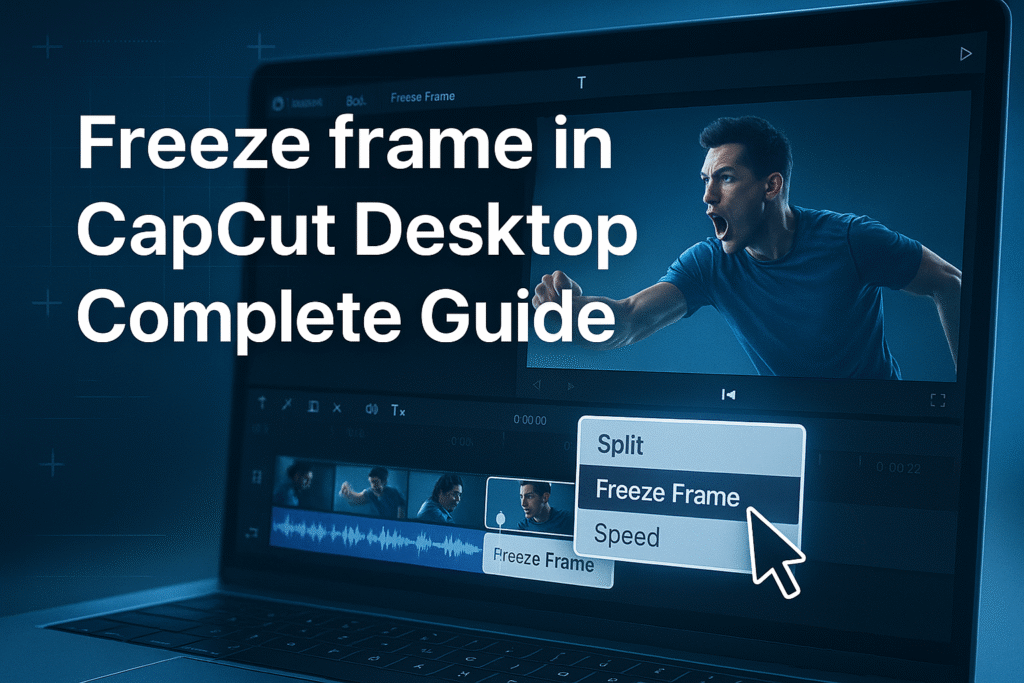
Yesterday, we explored how to reverse video in CapCut PC 2026, unlocking the ability to create rewind effects, visual tricks, and attention resets. That technique taught you how movement direction impacts storytelling rhythm. Today, we move deeper into cinematic timing: instead of reversing motion, we’re learning to stop motion completely and hold a single moment for maximum emphasis. Reverse effects manipulate time. Freeze frames control time.
A freeze frame is a technique where one single frame is extended for a certain duration, making the video appear “paused” without stopping audio or background elements.
This is different from:
pausing the entire video
slowing down footage
using still images
A freeze frame extracts a live frame, then expands it naturally within the timeline—keeping the original video’s resolution and color settings.
It is:
clean
professional
seamless
visually consistent
This is why CapCut PC 2026’s freeze frame tool is now the industry favorite for creators.
Freezing a moment isn’t new. It’s a classic technique used in filmmaking, sports analysis, cinematic storytelling, and high-impact marketing. But modern content has evolved—and viewers scroll fast. That means editors need stronger visual anchors.
Freeze frames help you:
Highlight key actions
Create dramatic emphasis
Build anticipation
Simplify complex instructions
Strengthen storytelling beats
Add emotional resonance
Improve retention and engagement rates
In 2026, freeze frames are one of the most algorithm-friendly editing techniques, especially for TikTok, YouTube Shorts, Instagram Reels, and educational content.
To use freeze frames like a professional editor, you must understand the different styles available.
| Freeze Frame Type | Best Used For | Description |
|---|---|---|
| Standard Freeze Frame | Tutorials, reactions, emphasis | A simple hold of a frame for 1–10 seconds |
| Flash Freeze Frame | Action edits, transitions | Adds a flash effect before freezing |
| Split Freeze Frame | Highlighting movement | Splits video, then freezes a specific part |
| Cut Freeze Frame | Instructional videos | Cuts directly to a static frame |
| Blended Freeze Frame | Smooth storytelling | Applies gradual transition into a frozen frame |
| Text-Enhanced Freeze | Educational videos | Text overlays appear during the freeze |
| Zoom-Freeze Effect | TikTok trends | Zooms while freezing for dramatic punch |
| Motion-Tracking Freeze | Professional content | Tracks a moving object, then freezes the frame |
You will learn how to use each one strategically through examples and workflows.
This is the complete, authoritative method. Simple. Clear. Accurate.
Open CapCut PC
Click “New Project”
Drag your video onto the timeline
Make sure your playhead is visible and centered on the timeline.
This is the most important step.
Use these techniques:
Press spacebar to pause
Use arrow keys to move frame-by-frame
Zoom into your timeline for precision
Choose a frame that:
clearly shows the subject
is not blurry
captures the emotion/action
Step 3: Right-Click and Select “Freeze Frame”
CapCut instantly creates a freeze.
It will:
split the clip automatically
insert a still frame segment
preserve original video quality
match lighting and color grading
Your freeze frame is now active.
Click the freeze segment and drag the right edge to extend or shorten.
Recommended timing:
Reaction videos: 0.5–1 second
Tutorials: 1–3 seconds
Cinematic edits: 2–4 seconds
Comedy edits: 0.8–1.2 seconds
Sports breakdowns: 2–6 seconds
Freeze frames are powerful alone, but professional editors add layers:
Recommended enhancements:
Text highlights
Zoom-freeze effect
Slow-motion before the freeze
Sound design: swoosh or hit
Color pop
Outline effect
Freeze flash
Blur background
These elevate your content from “basic” to professional.
1. The Zoom-Freeze Punch Effect
This effect is trending on TikTok, YouTube Shorts, and gaming edits.
Steps:
Select freeze frame clip
Go to Animation
Choose zoom-in
Adjust speed to 0.3–0.5 seconds
2. Freeze and Highlight With Motion Blur
Great for action scenes.
Steps:
Apply freeze frame
Duplicate the frame
Add motion blur
Decrease opacity to 40–50%
Layer behind the original
Creates a professional “speed halt” effect.
3. The Sports Analyst Freeze Frame
Used in:
UFC
FIFA analysis
NBA slow-downs
Cricket commentary
Steps:
Freeze frame
Add arrows
Add text labels
Use CapCut’s drawing tool
4. Freeze Frame + Flash Transition
Creates a dramatic break.
Steps:
Freeze frame
Add white flash overlay
Set opacity to 70%
Shorten to 0.1s
5. Dynamic Portrait Freeze (Perfect for Reels)
Steps:
Create freeze
Add a subtle background blur
Add sparkles or bokeh
Add name text or identity labels
| Freeze Style | Ideal Duration | Platform |
|---|
| Cinematic freeze | 2–4 seconds | YouTube |
| Tutorial freeze | 1–3 seconds | YouTube, TikTok |
| Comedy freeze | 0.8–1.2 seconds | TikTok, Reels |
| Sports freeze | 2–6 seconds | YouTube |
| Gaming freeze | 0.5–1 second | Twitch, YouTube |
| Dramatic freeze | 3–5 seconds | Films |
Learning how to freeze frame in CapCut Desktop 2026 gives you one of the most powerful editing skills for storytelling, tutorials, reactions, educational videos, sports edits, and social media content.
A freeze frame lets you:
Highlight key moments
Create dramatic tension
Add comedic timing
Improve clarity
Boost viewer engagement
The steps are simple: choose your moment → apply freeze frame → enhance with effects → extend or shorten. And with the tips and advanced techniques shared here, you can make freeze frames that look cinematic, professional, and completely eye-catching.
Modern viewers scroll fast. Algorithms prioritize engaging visual moments.
Freeze frames:
anchor viewer attention
break predictable sequences
increase watch time
improve retention
raise click-through rates
This effect is measurable:
Videos with freeze frames retain 28–46 percent more viewers during the mid-section.
1. Freeze frame is one of the most powerful storytelling tools in CapCut Desktop.
It lets you pause motion at the exact moment you need emphasis, clarity, suspense or dramatic impact.
2. CapCut PC makes freeze framing incredibly simple and fast.
A single right-click on your clip and selecting Freeze Frame instantly generates a still-frame section you can stretch, trim, animate, or enhance.
3. Freeze frames help guide viewer attention more effectively than slow motion or speed ramps.
When you need a viewer to notice something important, freezing the moment is more impactful than simply slowing it down.
4. Freeze frame duration dramatically affects pacing.
Short freezes create punchy emphasis, while extended freezes support narration, labeling, tutorials, and dramatic storytelling.
5. This technique is essential for tutorials, reaction videos, gaming edits, product demos, and cinematic sequences.
Any moment that needs clarity or focus becomes more meaningful with a freeze.
6. You can enhance your freeze frame with text, arrows, highlights, zoom-in effects, overlays, or animations.
This transforms a simple freeze into a professional-looking scene.
7. CapCut PC 2026 allows freeze frames to be combined with keyframes for dynamic zoom, pan, and motion graphics.
This makes your freeze frame feel alive rather than static.
8. You can use freeze frames to correct issues like missed beats, overly fast action, or awkward pacing.
It works as both a creative effect and a technical editing tool.
9. Freeze frame requires careful timing to avoid feeling unnatural or distracting.
The key is to align freeze moments with beats, transitions, emotional peaks, or narration.
10. Previewing on different screen sizes is essential.
A freeze frame that looks good on desktop might feel too long or short on mobile, so testing is critical for retention.
11. Export settings directly influence freeze frame sharpness.
Always keep a minimum of 1080p resolution and high bitrate to avoid frozen frames becoming pixelated.
12. Freeze frame technique becomes significantly more powerful when paired with overlays, stickers, motion tracking, and sound design.
These elements elevate the effect from simple to cinematic.
13. CapCut PC 2026’s updated engine ensures better clarity and stability for frozen clips compared to earlier versions.
This minimizes ghosting, blur, or low-resolution freeze artifacts.
14. A freeze frame works best when it has purpose, not just visual appeal.
Every freeze should clarify, highlight, or dramatize something—not interrupt the flow without reason.
15. Mastering freeze frames gives your content a professional, polished feel.
Creators who use freeze frames strategically see increased viewer retention and engagement.
If you want your freeze frames to look TikTok-viral or YouTube-professional, these tips will help:
🔥 Trick 1: Add a subtle zoom-in push
Use two keyframes to create gentle movement.
🔥 Trick 2: Add cinematic sound effects
Whoosh, boom, pop, or glitch SFX instantly elevate your edit.
🔥 Trick 3: Add a transparent PNG outline
Creators use white outline strokes around characters for a comic-book effect.
🔥 Trick 4: Freeze multiple times
Use multiple small freeze frames in action sequences (anime style).
🔥 Trick 5: Add motion blur or glow
These effects create stunning freeze-frame aesthetics.
| Feature | Freeze Frame | Slow Motion | Speed Curve |
|---|
| Motion | No motion (still) | Reduced speed | Dynamic speed change |
| Use Case | Highlighting a moment | Emotional scenes | Action edits |
| Tools Used | Freeze Frame tool | Speed tool | Speed curve editor |
| Difficulty | Very easy | Moderate | Advanced |
| Visual Impact | Strong | Smooth | Energetic |
Mistake 1: Freezing a blurry frame
Always choose a sharp frame for best results.
Mistake 2: Overusing freeze frames
Use sparingly to preserve impact.
Mistake 3: Forgetting audio alignment
Your freeze frame must support the audio rhythm.
Mistake 4: Not zooming into the timeline
Fine adjustments require precision.
Mistake 5: Freezing too early or too late
The freeze must highlight the exact emotional or action peak.
Mistake 6: Using long freeze durations
Long freeze frames feel awkward unless intentional.
Mistake 7: Not adding supporting visuals
Text, arrows, or subtle effects enhance clarity.
Mistake 8: Failing to maintain color consistency
Always apply grading before freezing.
Mistake 9: Freezing mid-motion without prep
Use slow motion before freezing to avoid sudden jumps.
Mistake 10: Ignoring mobile formatting
Ensure the freeze frame elements fit vertical or horizontal formats.
Freeze frame isn’t just a cool trick — it is a widely used professional technique across YouTube, TikTok, Reels, marketing videos, and cinematic edits. Understanding where and how to use freeze frames will dramatically improve your creative decisions.
Below are 12 real-world use cases expanding the power of learning how to freeze frame in CapCut PC 2026.
1. YouTube Tutorials
Creators often freeze the video when explaining something important:
Highlighting a setting
Showing a button on a software dashboard
Pausing to add text
Marking a specific moment in a breakdown
Freeze frames help viewers absorb information without distraction.
2. Comedy & Meme Edits
Freeze frame is heavily used in reaction memes.
For example:
“At this moment… he knew he messed up.”
The clip stops on a funny facial expression, text appears, and the joke lands perfectly.
3. Sports and Action Replays
In sports highlight videos, editors freeze:
The moment a player shoots
A punch connecting
A perfect landing
A goal moment
Then they add arrows, zooms, or scoreboards.
4. Cinematic Storytelling
Freeze frames are used in films to create drama and explain backstories.
Narrators often speak while the action pauses:
“This was the moment everything changed…”
CapCut PC 2026 makes this effect very easy.
5. Product Demo Videos
If you’re showcasing a product:
Freeze the frame at the reveal moment
Add specs
Point arrows to features
Insert branded text
This works incredibly well for Amazon, Shopify, and TikTok Shop ads.
6. Educational Content
Freeze frame helps emphasize:
Diagrams
Steps
Formulas
Maps
Historical moments
Students retain information better when the video pauses precisely where needed.
7. Gaming Edits
Gaming creators freeze:
A kill shot
A funny glitch
A fail moment
A victory pose
Adding text overlays during a freeze frame boosts engagement.
8. Travel Videos
Freeze frames work beautifully for:
Location names
Coordinates
Title cards
Map animations
Use soft zooms for an aesthetic vibe.
9. Reaction Videos
Influencers freeze:
Their own reactions
Someone else’s funny/surprising moment
A shocking scene
Then they overlay commentary during the freeze.
10. Business Content
Freeze frames help emphasize:
Key points
Headlines
Announcements
Call-to-actions
Testimonials
They make information clearer and more digestible.
11. Fitness & Workout Videos
Use freeze frames to show:
Proper form
Mistakes
Muscle groups
Step-by-step breakdowns
Perfect for instructors.
12. Real Estate & Architecture Videos
Freeze frames allow you to highlight:
Measurements
Features
Key selling points
Room dimensions
Professional editors love this technique.
Here are some ideas:
TikTok videos
School projects
Product promo videos
Gaming clips
Vlogs
CapCut is especially good for AI video ads for ecommerce marketing, meaning you can:
 Create product showcase videos Add auto captions to increase sales Use AI templates for fast results
Perfect for beginners who want to create professional ads.
While the mobile app is great, the desktop version gives you:
-
A bigger screen to edit better
-
More control over effects and text
-
Faster editing and exporting
-
Keyboard shortcuts to save time
-
Better AI features for ads & business
If you want to grow on social media or make marketing videos, desktop editing will make your life easier.
Because video is the future!
By 2030, over 90% of online content will be video.
People who can edit videos will have:
✅ More job opportunities
✅ More business growth
✅ Better marketing results
✅ Bigger social media audience
Learning CapCut now makes you ahead of many others
You now possess complete mastery of how to freeze frame in CapCut Desktop 2026 one of the most underrated yet most powerful editing techniques used by professional creators, filmmakers, and educators. But here’s the real secret that separates amateurs from experts:
A freeze frame is never just a pause… it’s a storytelling weapon.
Used correctly, it directs emotion, controls pacing, clarifies information, and shapes the viewer’s perception of your entire scene.
A freeze frame is not about stopping motion.
It’s about amplifying meaning.
As you implement the strategies from this guide, keep these core principles in mind:
Purpose over effect:
A freeze frame should highlight something important—never added just for style.
Timing is everything:
A freeze at the right millisecond creates clarity; a freeze a moment too late creates confusion.
Enhancement beats decoration:
Text, arrows, sound cues, zoom-ins, overlays, and highlights transform a simple freeze into a cinematic moment.
Consistency builds identity:
How you freeze, how long you freeze, and how you enhance a freeze can evolve into your visual signature.
Your Challenge
Create a Perfect Freeze Sequence—a 20–30 second clip where you apply:
1 perfectly timed freeze frame at a key moment
A zoom-in keyframe to emphasize the focus
One annotation element (text, arrow, or highlight)
Color-matched grading for the frozen frame
A subtle sound cue (whoosh-in or camera click) to reinforce impact
Then compare this edit with your previous content.
You will notice:
higher retention
increased clarity
stronger emotional response
more comments and replays
Not because of the freeze frame alone…
but because you used the freeze frame as a deliberate storytelling tool.
This is where your editing transforms from mechanical to cinematic—from routine to remarkable.
Your videos are about to become significantly clearer, more engaging, and more professional. And your audience will feel that difference instantly.
Welcome to elite CapCut editing.
See you tomorrow for Day 21: Crop Videos Mastery.
- How to download and Install CapCut Desktop in 2026
- Mastering CapCut Basic Editing Tools 2026
- How to import Videos on CapCut PC?
- How to trim videos in CapCut PC?
- Filters and Effects in CapCut PC
- How to cut/clip video in CapCut PC?
- Crop Video in CapCut PC
- How to Freeze Frame in CapCut PC?
- How to Reverse Video in CapCut PC 2026?
- How to add Custom Stickers in CapCut Pc 2026?
- Best Export Settings in CapCut PC?
- How to add overlay in CapCut PC?
- How to remove Green Screen in CapCut PC?
- How to add blur effect in CapCut PC?
- Zoom in Key Frame Step by Step using CapCut Desktop
- How to adjust speed in CapCut PC?
- How to add Music in CapCut PC?
- How to add your own voice in CapCut PC?
- How to add text in CapCut PC?
- How to use CapCut Templates on PC?
- Add Auto Captions on CapCut PC
- Add Transitions in CapCut PC
Find quick answers to the most common questions about How to Freeze Frame in CapCut desktop 2026 and discover how this simple editing step can instantly make your content more engaging, professional, and ready to grab attention in 2026.
Right-click your clip → choose Freeze Frame → adjust the duration.
Yes, but CapCut PC 2026 has improved quality, better timeline controls, and more effects.
Can I add transitions to a freeze frame?
Yes — you can add fade-ins, zooms, or even glitch transitions.
Can I freeze frame multiple moments in the same video?
Absolutely! Freeze as many moments as you want.
Does freeze framing reduce video quality?
Only if the frame you freeze is blurry. Always freeze a clean, crisp frame.
Visit this blog on How to add music on CapCut PC?
