



In our previous lesson, we explored how speed control transforms the rhythm and emotion of your video.
You learned how to:
-
Use Normal Speed to control pacing.
-
Apply Curve Speed for smooth, dramatic slow-mo or fast transitions.
-
Match video speed with beat drops or dialogue timing for cinematic flow.
-
Add speed ramps for dynamic storytelling — making your footage feel alive.
Those techniques gave your edits energy and emotion.
Now, in Day 13, we’ll build on that foundation by adding another layer of professional movement;
The Zoom In Keyframe effect to guide your viewer’s attention and make your visuals pop with purpose
Ever watched a TikTok or YouTube clip where the camera zooms right in on someone’s reaction — perfectly timed, perfectly smooth — and thought, “Whoa, how did they do that?”
It’s not luck. It’s the Zoom In Keyframe effect in CapCut PC a secret weapon that gives life and movement to ordinary videos.
When you master this, your edits instantly feel more professional, more dynamic, and more watchable. Whether you’re showcasing a product, zooming into a reaction, or emphasizing a line of text, this simple effect turns static footage into something that grabs attention and keeps it.
And the best part? You don’t need expensive software.
CapCut PC gives you all the tools you need — free, fast, and beginner-friendly.
Let’s start with the basics.
A keyframe is a marker that tells CapCut when and how something changes over time.
When you apply zoom in keyframe CAPCUT PC, you’re telling CapCut:
“Start normal at this point… then zoom closer by the next point.”
The software automatically fills in the movement between these two moments — creating that buttery-smooth zoom you see in viral edits and professional YouTube videos.
CapCut gives you two keyframe controls:
-
Scale (for size/zoom)
-
Position (for direction — up, down, left, right)
Together, they allow you to “fake camera movement” in post-production.
Here’s the exact process to create your first zoom animation:
Open CapCut Desktop and import your clip into the timeline.
If you followed Day 12 (Speed Adjustment), you can continue working with the same project — it’s a perfect base to test zoom effects.
Click on your video clip in the timeline. This is the section where you’ll apply the zoom.
Short clips (3–6 seconds) work best for smooth, visible zooms.
Step 3: Add the First Keyframe
Go to the preview window, and in the toolbar above it, locate the diamond icon (Keyframe).
-
Place your playhead at the point where the zoom should begin.
-
Click the diamond to create your first keyframe.
This keyframe marks your starting zoom level — usually 100% scale.
Move the playhead a few seconds forward — where you want the zoom to end.
Now:
-
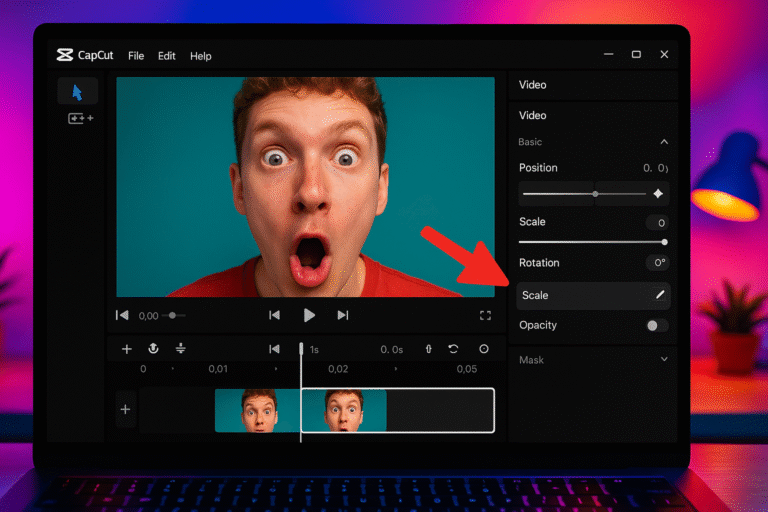
Increase the Scale value slightly (e.g., from 100% to 120%).
-
CapCut will automatically create the second keyframe.
You’ll notice the preview window zooms closer.
Boom — your zoom is in motion
Want to zoom toward a specific object — like a product or face?
Click and drag the video in the preview window to center your focus area.
This ensures your zoom-in follows the subject naturally.
Press Play and watch the magic.
If the zoom feels too fast, drag the second keyframe farther apart.
If it’s too slow, move them closer together.
This gives you total control over timing and smoothness.
Once satisfied, click Export and save your project.
Now you’ve created your first cinematic zoom in keyframe in CapCut PC no camera moves required.
Let’s get creative! Here are five real-world ways to use zooms effectively:
Use a smooth zoom-in to highlight your product details — texture, logo, or packaging. Combine with slow motion for a luxury feel.
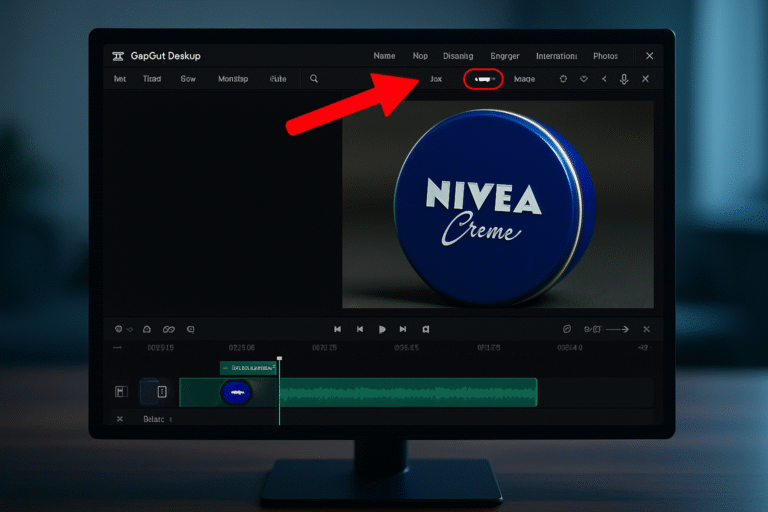
Perfect for YouTube commentary or comedy clips.
Add a quick, snappy zoom-in on your face right after a joke or surprise moment. It amplifies emotion instantly.
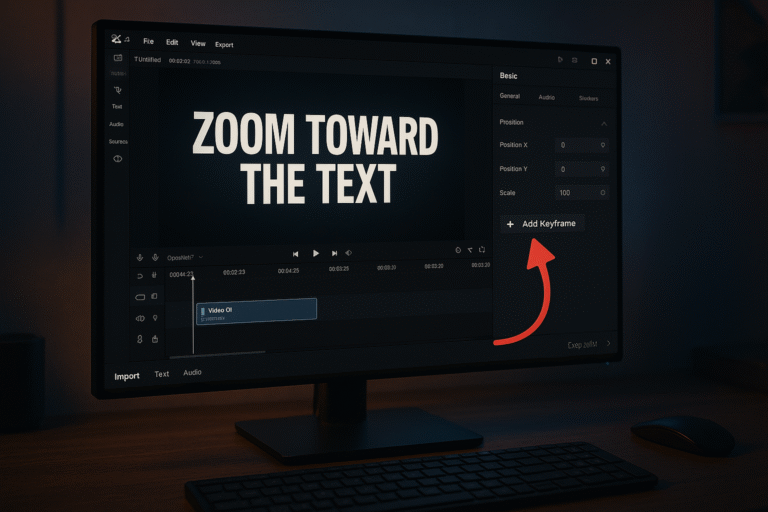
When your video displays important on-screen text, zoom slightly toward it.
This subtly directs the viewer’s attention — ideal for tutorials and ads.
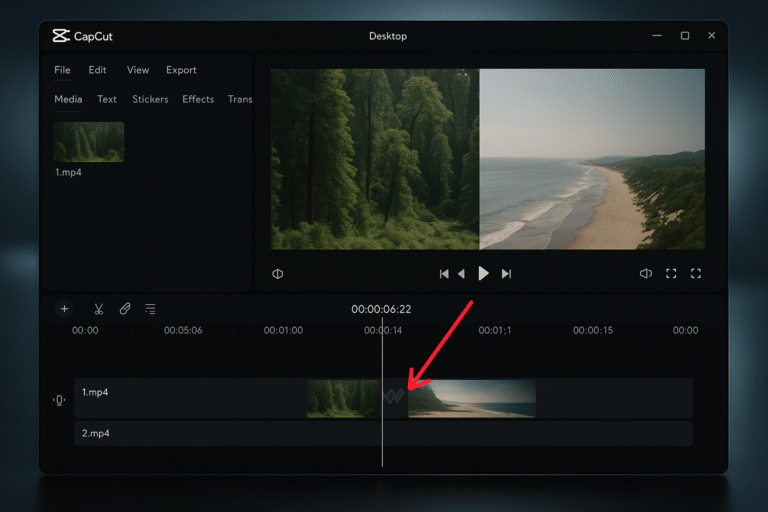
Combine zoom-ins and zoom-outs between two clips for smooth scene transitions.
Example: Clip A zooms in → Clip B starts zoomed out. The motion connects them fluidly.
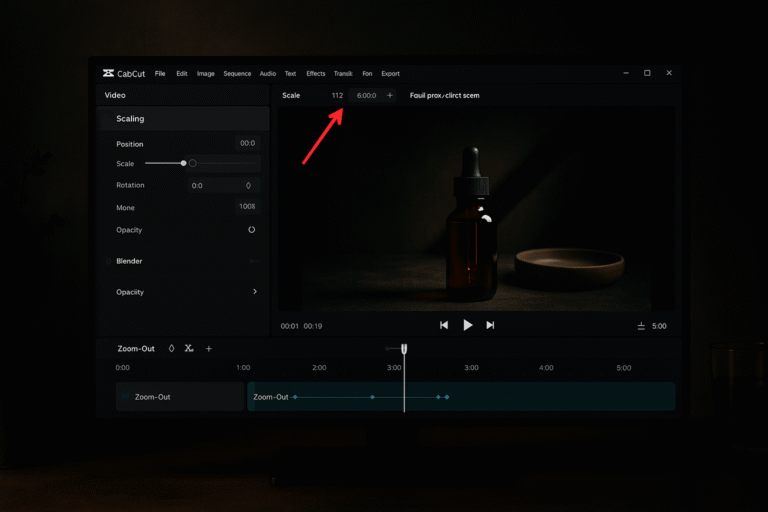
Start zoomed in, then slowly zoom out to reveal a wider scene.
It creates drama and builds curiosity — perfect for intros, product reveals, or cinematic sequences.
-
Here’s why professional editors never skip zoom work:
-
🎥 Adds Motion to Static Shots: Even a still frame feels alive with smooth zooms.
-
👀 Guides Viewer Attention: You control where your audience looks — text, face, or detail.
-
🎬 Creates Emotional Impact: Slow zoom-ins add tension or intimacy; zoom-outs give relief or context.
-
💡 Improves Storytelling: Motion keeps pacing interesting and directs focus.
-
🔄 Pairs Perfectly with Transitions: Zoom effects blend scenes naturally when paired with speed ramps or fades.
Think of zooming as “visual punctuation” — it emphasizes what words can’t.
-
Zoom in Keyframe CapCut PC controls animation over time.
-
-
-
Use Scale to zoom in or out smoothly.
-
Position helps center focus on your subject.
-
Timing between keyframes affects speed and emotion.
-
Zooms guide attention and add storytelling depth.
-
-
-
✅ Use Ease In/Out animation for smoother transitions.
✅ Keep zooms subtle — too much motion looks chaotic.
✅ Combine with filters or color adjustments to enhance mood.
✅ Add sound effects (SFX) like camera zoom sounds for punch.
✅ Always preview your zooms with music timing — it creates rhythm.
In this Day 13 CapCut PC tutorial, we explored how to create stunning zoom in keyframe CapCut PC effects to make your videos more dynamic and professional.
You learned how to use the Scale setting to zoom smoothly, how to focus on products or faces, and five creative ways to use zoom in and out for storytelling.
Zoom effects are more than motion; they’re a powerful storytelling tool that lets your audience feel what you want them to see.
Here are some ideas:
TikTok videos
School projects
Product promo videos
Gaming clips
Vlogs
CapCut is especially good for AI video ads for ecommerce marketing, meaning you can:
 Create product showcase videos Add auto captions to increase sales Use AI templates for fast results
Perfect for beginners who want to create professional ads.
While the mobile app is great, the desktop version gives you:
-
A bigger screen to edit better
-
More control over effects and text
-
Faster editing and exporting
-
Keyboard shortcuts to save time
-
Better AI features for ads & business
If you want to grow on social media or make marketing videos, desktop editing will make your life easier.
Because video is the future!
By 2030, over 90% of online content will be video.
People who can edit videos will have:
✅ More job opportunities
✅ More business growth
✅ Better marketing results
✅ Bigger social media audience
Learning CapCut now makes you ahead of many others
Zooms are one of those “simple but powerful” editing tools — easy to overlook, but essential for visual storytelling.
With Zoom In Keyframe CapCut PC, you can create dynamic movement, highlight emotion, and guide your viewer’s eyes exactly where you want them.
Whether you’re filming a product ad, reaction video, or cinematic short — mastering keyframes will make your edits look intentional, rhythmic, and alive.
Remember: motion creates emotion.
And now, you have full control of it.
So go ahead — open CapCut, try your first keyframe zoom, and bring your videos to life.
- How to download and Install CapCut Desktop in 2026
- Mastering CapCut Basic Editing Tools 2026
- How to import Videos on CapCut PC?
- How to trim videos in CapCut PC?
- Filters and Effects in CapCut PC
- How to cut/clip video in CapCut PC?
- Crop Video in CapCut PC
- How to Freeze Frame in CapCut PC?
- How to Reverse Video in CapCut PC 2026?
- How to add Custom Stickers in CapCut Pc 2026?
- Best Export Settings in CapCut PC?
- How to add overlay in CapCut PC?
- How to remove Green Screen in CapCut PC?
- How to add blur effect in CapCut PC?
- Zoom in Key Frame Step by Step using CapCut Desktop
- How to adjust speed in CapCut PC?
- How to add Music in CapCut PC?
- How to add your own voice in CapCut PC?
- How to add text in CapCut PC?
- How to use CapCut Templates on PC?
- Add Auto Captions on CapCut PC
- Add Transitions in CapCut PC
Find quick answers to the most common questions about zoom in keyframe CAPCUT PC and discover how this simple editing step can instantly make your content more engaging, professional, and ready to grab attention in 2026.
Yes. Add more keyframes along the timeline for complex camera movements.
Use “Ease In/Out” keyframe settings — it softens transitions and removes jerky motion.
Of course. Pair zoom with speed ramps, filters, or text animations for cinematic edits.
What’s the ideal zoom level?
Keep it between 110–130% for natural motion. Over 150% can cause blur or pixelation.
Does zooming affect video quality?
Yes, slightly because you’re enlarging the frame. Always start with high-resolution footage.
