



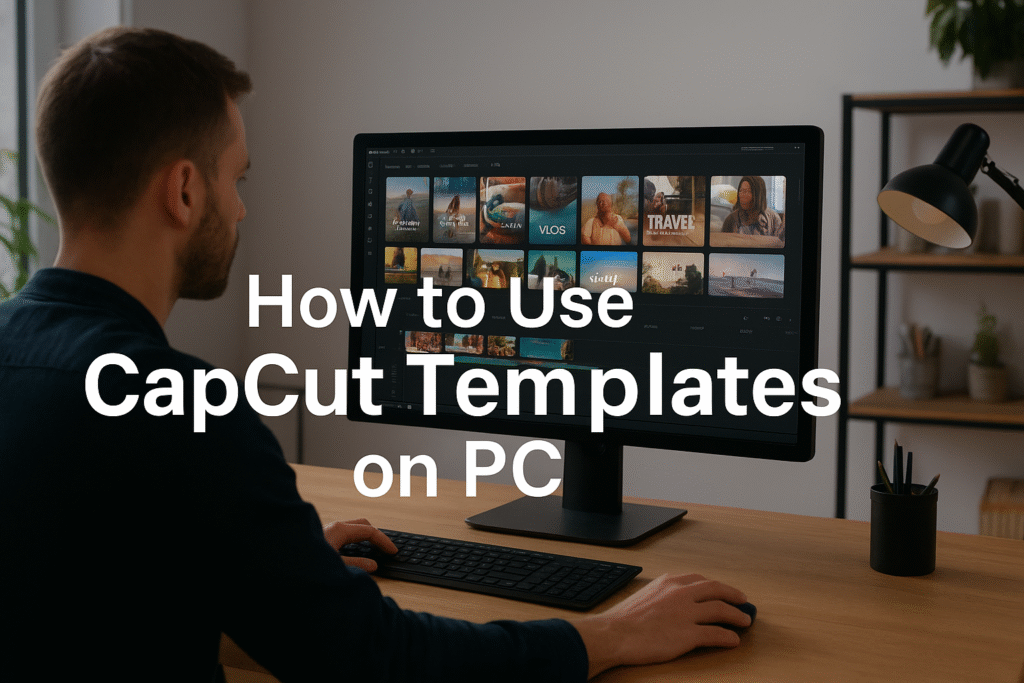
In our previous blog, we explored how to add text in CapCut PC, a simple yet powerful way to make your videos more engaging and professional. You learned how to use the Text tab, add custom fonts, play with animations, and style your captions or headlines to match your brand’s tone. If you followed along, your videos should now have more personality and clarity, helping your message stand out. Now, let’s take it up a notch and see how you can use CapCut templates on PC to speed up your editing workflow.
Ever watched a viral video and thought, “How did they make that so fast?”
Here’s the secret: CapCut Templates.
Yes, these ready-made, drag-and-drop video designs can turn your clips into cinematic stories in minutes — not hours. And the best part? You don’t need to be a professional editor to use them.
Whether you’re creating YouTube intros, Instagram reels, TikToks, product promos, or brand stories, CapCut templates give you a powerful head start.
So, sit back, open CapCut Desktop, and let’s dive into how you can create viral-ready videos with templates — step-by-step.
Follow these steps exactly and you will be ready to edit.
If you haven’t already downloaded CapCut Desktop, visit the official CapCut website and install the PC version.
Once open, log in with your TikTok or ByteDance account. It syncs your projects, fonts, and templates across devices.
👉 Pro Tip: Always update CapCut before editing. New updates often include trending templates and better rendering features.
After logging in, look to the top menu bar; you’ll see an option called Templates.
Click it.
Now, you’ve entered a creative goldmine. This section is filled with thousands of trending templates, sorted by categories like:
-
Reels and Shorts
-
Promos and Product Videos
-
Vlogs and Lifestyle
-
Gaming Clips
-
AI Edits and Effects
Each template comes with pre-timed music, animations, and transitions — all ready for your content.
Step 3: Browse and Preview Templates
Scroll through the library or use the search bar to find what fits your vibe.
Try searching:
-
“Travel Vlog”
-
“Business Promo”
-
“AI Trend Edit”
-
“Before and After Reel”
Hover over a template thumbnail to preview it instantly.
When you find one that clicks with your brand’s style, click Use Template.
👉 Wait, there’s more!
Each template shows the number of uses, so you can spot what’s trending right now in the creator community.
Here’s where the magic happens.
Once the template loads in CapCut Desktop, you’ll see placeholders marked for:
-
Videos
-
Images
-
Logos
-
Text
Click on each slot and import your media — drag and drop from your computer or use files from your CapCut Cloud Library.
CapCut automatically adjusts your clips to fit the template timing and transitions.
No need to tweak endlessly — it’s like magic
Want to make the template truly yours?
-
Change Text: Click on the text boxes and type your brand name, slogan, or CTA.
-
Adjust Colors: Match your logo’s color palette for a consistent aesthetic.
-
Replace Music: Go to the Audio tab → choose from CapCut’s library or upload your own.
🎵 Pro Tip: If you’re creating social media content, pick upbeat tracks that match your audience’s energy.
You can spice up your template further by adding:
-
Stickers or emojis for fun edits
-
Captions for accessibility
-
Voiceovers for storytelling
-
AI-generated subtitles (from the Text → Auto Captions feature)
These small touches make your video stand out — especially on TikTok or YouTube Shorts.
When your masterpiece is ready, click Export in the top-right corner.
Choose:
-
Resolution: 1080p or 4K
-
Format: MP4 (recommended)
-
Quality: High
Once exported, you can upload directly to TikTok, YouTube, or Instagram straight from CapCut!
And that’s it — you’ve just learned how to use CapCut templates on PC like a pro.
When using CapCut templates on PC, always tweak the text, colors, and background music to match your brand style. Even a few small changes — like using your logo colors or signature font — can make a trending template feel uniquely yours and help your videos stand out in crowded social feeds.
| Step | Action | Why It Matters |
|---|---|---|
| 1 | Open CapCut Desktop | Start editing with full control |
| 2 | Go to Templates | Access ready-made viral designs |
| 3 | Browse & Preview | Find trending edits fast |
| 4 | Replace Media | Personalize your video |
| 5 | Customize | Add your brand touch |
| 6 | Enhance | Use stickers, captions, and effects |
| 7 | Export | Share to any platform instantly |
👉 Remember: The secret to fast, viral-ready editing isn’t doing more work — it’s using smart tools like CapCut templates to do the heavy lifting for you.
In this blog, we discovered how to use CapCut templates on PC to create stunning videos in minutes. From browsing trending template categories to replacing media with your own clips and customizing the final look, you now know how to turn any idea into a polished video fast. Whether you’re making reels, promos, or vlogs, CapCut’s ready-made templates are your shortcut to viral, professional-looking edits without the editing headache.
Here are some ideas:
TikTok videos
School projects
Product promo videos
Gaming clips
Vlogs
CapCut is especially good for AI video ads for ecommerce marketing, meaning you can:
 Create product showcase videos Add auto captions to increase sales Use AI templates for fast results
Perfect for beginners who want to create professional ads.
While the mobile app is great, the desktop version gives you:
-
A bigger screen to edit better
-
More control over effects and text
-
Faster editing and exporting
-
Keyboard shortcuts to save time
-
Better AI features for ads & business
If you want to grow on social media or make marketing videos, desktop editing will make your life easier.
Because video is the future!
By 2030, over 90% of online content will be video.
People who can edit videos will have:
✅ More job opportunities
✅ More business growth
✅ Better marketing results
✅ Bigger social media audience
Learning CapCut now makes you ahead of many others
Final Thoughts
CapCut templates are every creator’s best-kept secret. They save hours, improve consistency, and help you jump on trends fast — no editing degree needed.
So next time you’re staring at a blank timeline, remember: you don’t need to start from scratch.
Open CapCut Desktop, head to Templates, and let the creative magic unfold.
Try one today — because your next viral video is just a few clicks away.
Find quick answers to the most common questions about how to use templates in CapCut PC, and discover how this simple editing step can instantly make your content more engaging, professional, and ready to grab attention in 2026.
Yes! You can replace any video, image, text, or sound within a template. The layout stays intact, giving your edits a polished, professional look in minutes.
Most templates are 100% free, though some premium creators offer exclusive templates through CapCut Pro. You can always preview before applying.
Absolutely. CapCut lets you upload your own tracks or even record a voiceover directly inside the app.
Do CapCut templates work offline?
No, You can’t use templates offline.
What’s the best way to find trending templates?
Head to the Trending section or use hashtags like “viral” or “AI edit” in the search bar. These are updated weekly based on what creators are using most.
