In our last post, we explored how to add music to CapCut PC, transforming dull clips into lively edits filled with rhythm and personality. You learned how to upload, trim, and sync tracks for perfect sound balance.
But what if your video needs something more personal — something human?
That’s right… your voice.
Because when your audience hears you, they connect more deeply with your story.
Today, you’ll learn exactly how to add your own voice on CapCut PC in just a few simple steps.
Ready to talk to your audience like never before? Let’s begin.
Here’s a quick question…
Have you ever watched a video that looked fine but just didn’t feel right?
Chances are, it was missing one thing background music.
Music sets the mood, guides emotions, and makes your audience stay longer.
A silent video feels empty, but a well-synced track? That’s what makes viewers say “Wow!”
And the good news?
With CapCut PC, adding music is super easy — no fancy software, no confusion, no headache.
So… let’s get right into it.
Here’s the truth: people connect with people, not just visuals.
Adding your voice transforms a silent or generic video into an authentic, personal experience.
Whether you’re:
-
Explaining a tutorial,
-
Narrating a story,
-
Or giving your brand a voice
Your narration makes everything feel real, trustworthy, and human.
And guess what? You don’t need any fancy gear.
If you have a working mic and CapCut Desktop, you’re already good to go.
Let’s dive in.
Follow these steps exactly and you will be ready to edit.
Start by opening CapCut Desktop on your PC.
Click New Project (or open an existing one). Import your video clips so you can see your visuals on the timeline.
Pro tip: If you’re planning a tutorial or vlog, make sure your script or talking points are ready before recording.
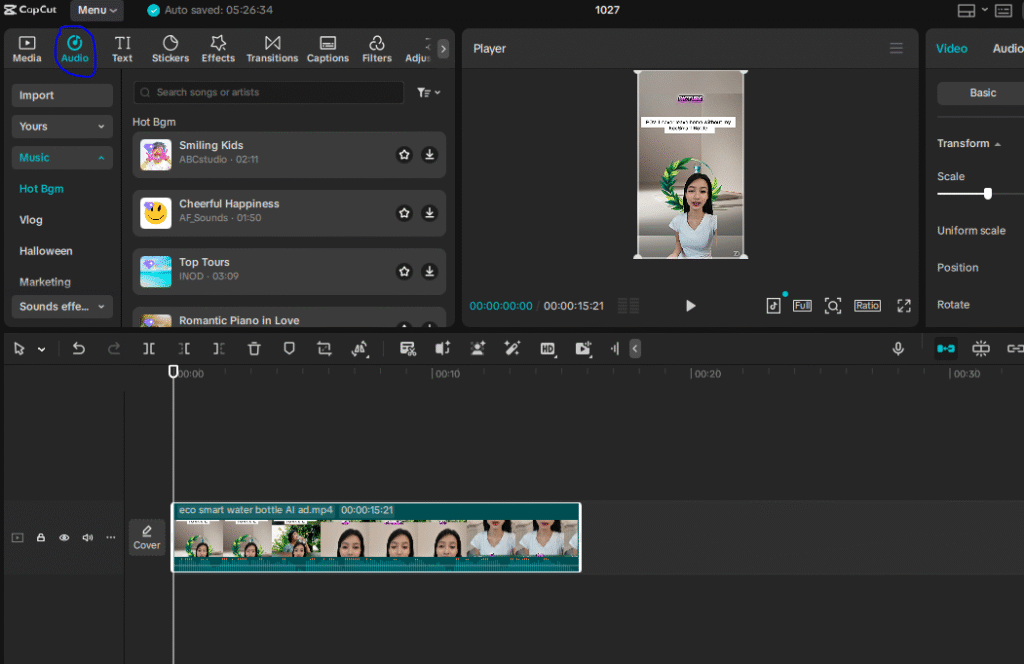
Once your video is ready, move your eyes to the top toolbar — and click on Audio.
This is your sound command center. From here, you can add music, effects, or — what we’re focusing on — a voiceover.
Step 3: Select Voiceover Option
Now, click Voiceover.
CapCut will open a small microphone window on your screen.
👉 Don’t worry — it’s super simple.
You’ll see a big Record button, a mic level bar, and a timer.
Make sure your mic is working and your input volume isn’t too high (no red spikes).
Here’s the fun part — recording your voice!
Take a deep breath. Relax.
Then click Record, and start speaking naturally as your video plays.
🎙️ Pro tip: Watch your video while you talk — this helps you match tone, timing, and emotion with your visuals.
When you’re done, just click Stop.
Boom! Your voice track appears automatically in your timeline, right under your video.
Now that your voiceover is recorded, it’s time to polish it up.
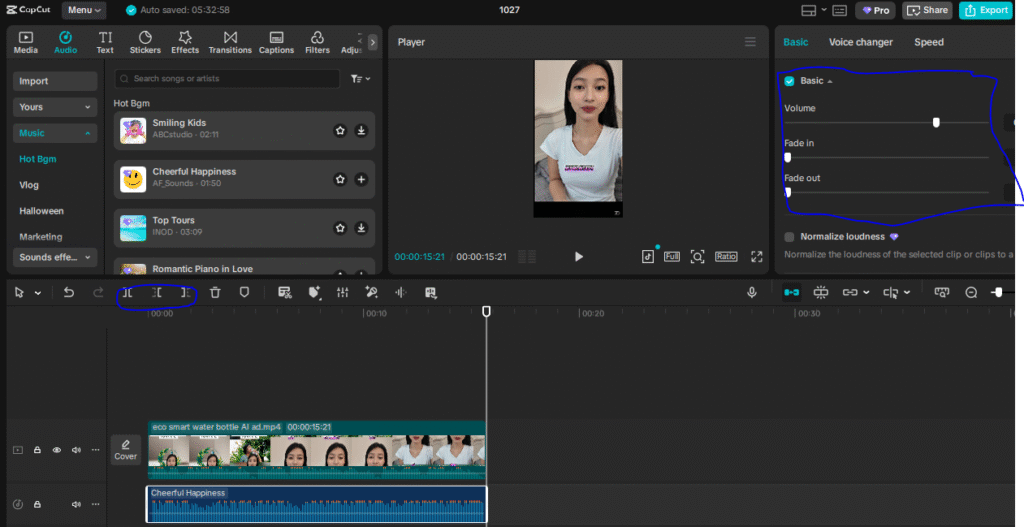
✅ Trim: Drag the ends of your audio track to remove unwanted pauses or mistakes.
✅ Move: Click and drag the track to align it perfectly with your visuals.
✅ Adjust volume: Right-click → Volume → set it so it blends naturally with background music (if any).
✅ Fade In/Out: Add a smooth start and finish to make your audio feel professional.
And that’s it — you’ve officially added your own voice to your video on CapCut PC.
Use a quiet room with minimal background noise.
🎙️ Speak at a consistent distance from the mic (about 6–8 inches).
🗣️ Smile slightly while recording — it actually makes your voice sound friendlier!
🔁 Record multiple takes and pick the best one.
Common Mistakes to Avoid
🚫 Speaking too close to the mic — causes distortion.
🚫 Forgetting to trim — leaves awkward silences.
🚫 Recording without watching the video — results in poor sync.
🚫 Overlapping with loud music — voice becomes unclear.
Fix these, and your audio will sound like a pro studio track.
Quick Summary
You now know how to add your own voice on CapCut PC in five easy steps:
-
Open your project
-
Go to Audio
-
Click Voiceover
-
Record your narration
-
Adjust, trim, and sync
That’s it — your videos are now ready to speak directly to your audience.
Here are some ideas:
TikTok videos
School projects
Product promo videos
Gaming clips
Vlogs
CapCut is especially good for AI video ads for ecommerce marketing, meaning you can:
Create product showcase videos
Add auto captions to increase sales
Use AI templates for fast results
Perfect for beginners who want to create professional ads.

While the mobile app is great, the desktop version gives you:
-
A bigger screen to edit better
-
More control over effects and text
-
Faster editing and exporting
-
Keyboard shortcuts to save time
-
Better AI features for ads & business
If you want to grow on social media or make marketing videos, desktop editing will make your life easier.
Because video is the future!
By 2030, over 90% of online content will be video.
People who can edit videos will have:
✅ More job opportunities
✅ More business growth
✅ Better marketing results
✅ Bigger social media audience
Learning CapCut now makes you ahead of many others
Key Takeaway
Your voice adds emotion and connection that visuals alone can’t.
Learning how to add your own voice on CapCut PC empowers you to create deeper, more engaging content that resonates.
So don’t stay silent — let your story be heard.
Because your voice is your brand.
Find quick answers to the most common questions about how to add your own voice to CapCut PC, and discover how this simple editing step can instantly make your content more engaging, professional, and ready to grab attention in 2026.
Can I record my voice directly in CapCut PC?
Yes! CapCut PC has a built-in voiceover recorder under the Audio tab, no extra apps needed.
Can I import pre-recorded voice files?
Absolutely. You can upload MP3 or WAV files and drag them onto the timeline.
How can I remove background noise?
Record in a quiet room or use external noise removal software before importing.
Can I add multiple voiceovers in one project?
No. Music doesn’t change resolution or quality — it just enhances your viewer’s experience.
Does CapCut PC save my voiceovers automatically?
Yes, your recordings are stored in the project’s audio section. Just remember to save your project after editing.