



Yesterday, we learned how to add your own voice on CapCut PC turning your video into something that speaks.
Now, it’s time to make it shout.
Because here’s the truth:
Even a great voiceover can fall flat if your visuals don’t communicate the message.
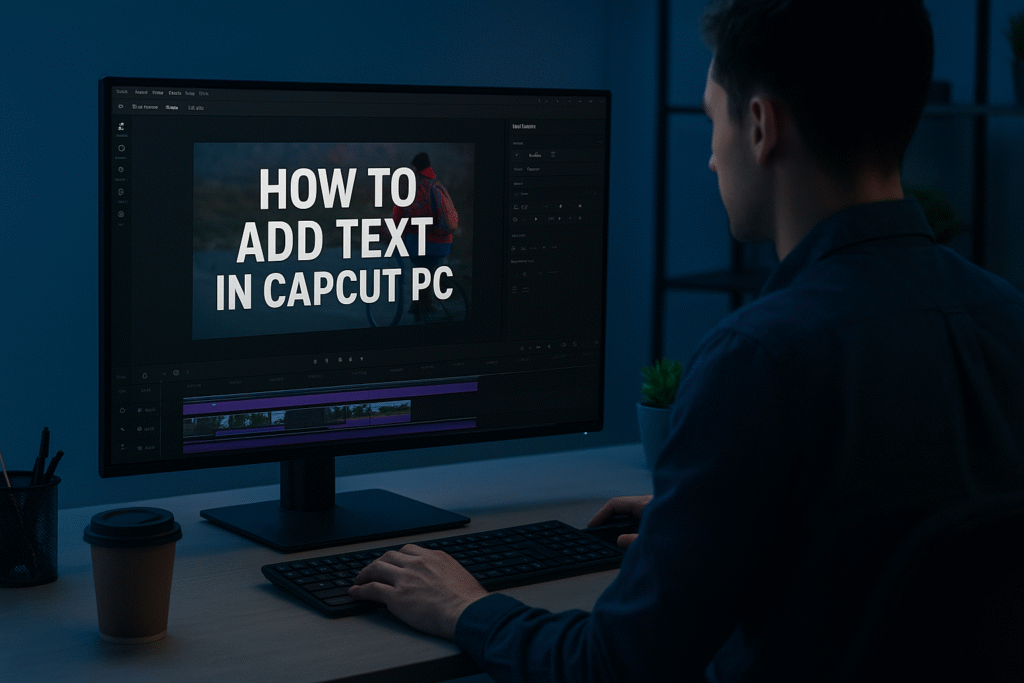
So today, we’ll learn how to add text in CapCut PC bold, animated, attention-grabbing words that make your video impossible to scroll past.
Ready? Let’s go.
Ever watched a video without captions and skipped it?
Exactly.
Text gives context, emotion, and clarity — even when the sound is off.
Whether you’re highlighting a quote, adding a punchy headline, or writing subtitles, the right text can transform your edit from boring to brilliant.
Let’s break it down step-by-step
Follow these steps exactly and you will be ready to edit.
Start by opening your project in CapCut Desktop.
Make sure your video clip is already placed on the timeline — we’re about to add something extra on top.
Look at the top of your screen — you’ll see several tabs.
Click on Text.
This is your creative playground for everything typography.
Step 3: Click “Add Text”
Now hit Add Text.
You’ll see a text box appear right on your video preview.
That’s your canvas — type whatever message you want.
Write something short, sharp, and easy to read.
Maybe it’s your video title, a call-to-action, or a quote.
Keep it punchy — you want viewers to read it fast.
Here’s where the fun begins.
Change the font, size, color, and alignment until it fits your brand.
You can even upload your own custom fonts if you want a signature style.
Don’t let your text just sit there — make it move.
Click on the Animation tab and choose effects like Typewriter, Fade In, or Pop.
A little motion goes a long way.
Finally, polish it up.
Add a subtle shadow or background color to make your text stand out — especially against bright or busy visuals.
And remember: keep it clean, clear, and readable.
Use consistent fonts and colors across all your videos.
That’s how you build a recognizable style — one that viewers remember instantly.
| Step | Action | Purpose |
|---|
| 1 | Open your project | Prepare your workspace |
| 2 | Go to the text tab | Access text tools |
| 3 | Click “Add Text” | Insert new text layer |
| 4 | Type your message | Add your content |
| 5 | Customize it | Match your brand style |
| 6 | Animate | Bring it to life |
| 7 | Add shadow/background | Improve readability |
In this blog, we explored how to add text in CapCut PC using a simple, step-by-step approach perfect for beginners. You learned how to open your project, access the Text tab, add and customize your text, and enhance it with animations, shadows, and backgrounds to make your videos more engaging. The post also explained why adding text is essential for grabbing attention, improving communication, and reinforcing your brand’s identity. By the end, readers understand that adding text in CapCut PC isn’t just about captions—it’s about giving your videos a clear, powerful voice that connects with viewers visually.
Here are some ideas:
TikTok videos
School projects
Product promo videos
Gaming clips
Vlogs
CapCut is especially good for AI video ads for ecommerce marketing, meaning you can:
 Create product showcase videos Add auto captions to increase sales Use AI templates for fast results
Perfect for beginners who want to create professional ads.
While the mobile app is great, the desktop version gives you:
-
A bigger screen to edit better
-
More control over effects and text
-
Faster editing and exporting
-
Keyboard shortcuts to save time
-
Better AI features for ads & business
If you want to grow on social media or make marketing videos, desktop editing will make your life easier.
Because video is the future!
By 2030, over 90% of online content will be video.
People who can edit videos will have:
✅ More job opportunities
✅ More business growth
✅ Better marketing results
✅ Bigger social media audience
Learning CapCut now makes you ahead of many others
Key Takeaway
When you add text in CapCut PC, you’re not just adding captions —
You’re giving your message power.
Use it wisely.
Find quick answers to the most common questions about how to add text in CapCut PC, and discover how this simple editing step can instantly make your content more engaging, professional, and ready to grab attention in 2026.
To add text in CapCut PC, open your project, click the Text tab, then select Add Text. Type your message, adjust the font, size, and color, and place it wherever you want on your video.
Yes! After adding your text, go to the Animation section and choose from effects like Typewriter, Fade In, or Pop. Animated text helps make your videos more dynamic and attention-grabbing.
Use contrast colors, add a shadow or background, and avoid overly fancy fonts. Keeping your text clean and simple ensures it stays easy to read on all screens.
Can I use custom fonts in CapCut PC?
Absolutely. CapCut allows you to upload and use your own fonts to match your brand’s identity or style. You can do this in the text customization panel after adding your text.
Why should I use text in my videos?
Adding text helps communicate key points, improves engagement, and ensures your message is clear — even when viewers watch without sound. It’s a must-have feature for professional and social media videos alike.
